How to add new domain menu entries
add-new-domain-menu-entries #EIFE version 0.1 | 1m 20s Read time
Note - On Menu Usability
For optimal navigation and user experience, it is recommended to limit the number of menu entries to a maximum of six. Additionally, to maintain clarity and ease of use, please ensure that nesting of menu entries is restricted to only one level. Adhering to these guidelines will help keep the site navigation clean and user-friendly.
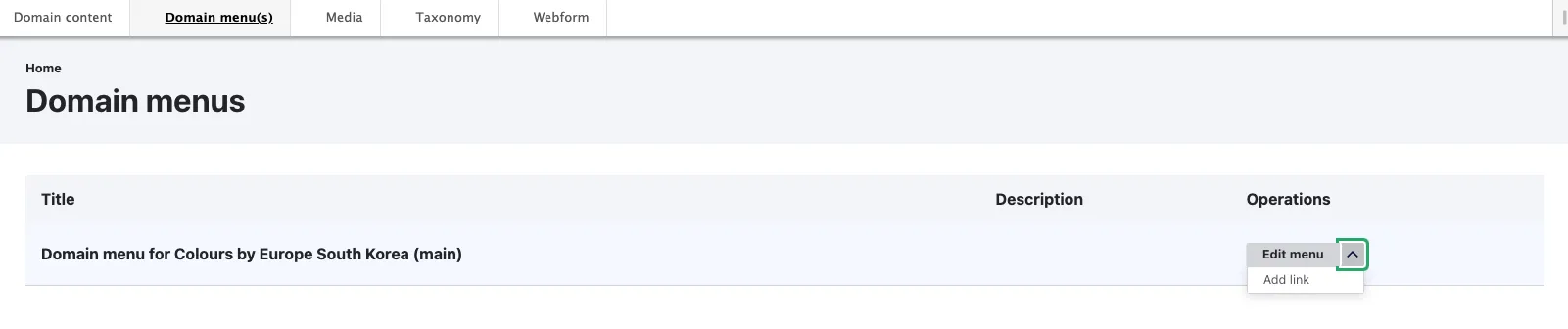
When you first access the Domain Menu Dashboard, you will find it includes sub-boards categorised by country site. If your organisation manages more than one campaign, multiple entries will be displayed. Each entry contains menu links specific to the country site it pertains to.
- Each domain menu entry features a dropdown menu for ‘Operations’ that allows actions to be conducted within each country site menu.
- Click the ‘Edit menu’ button.
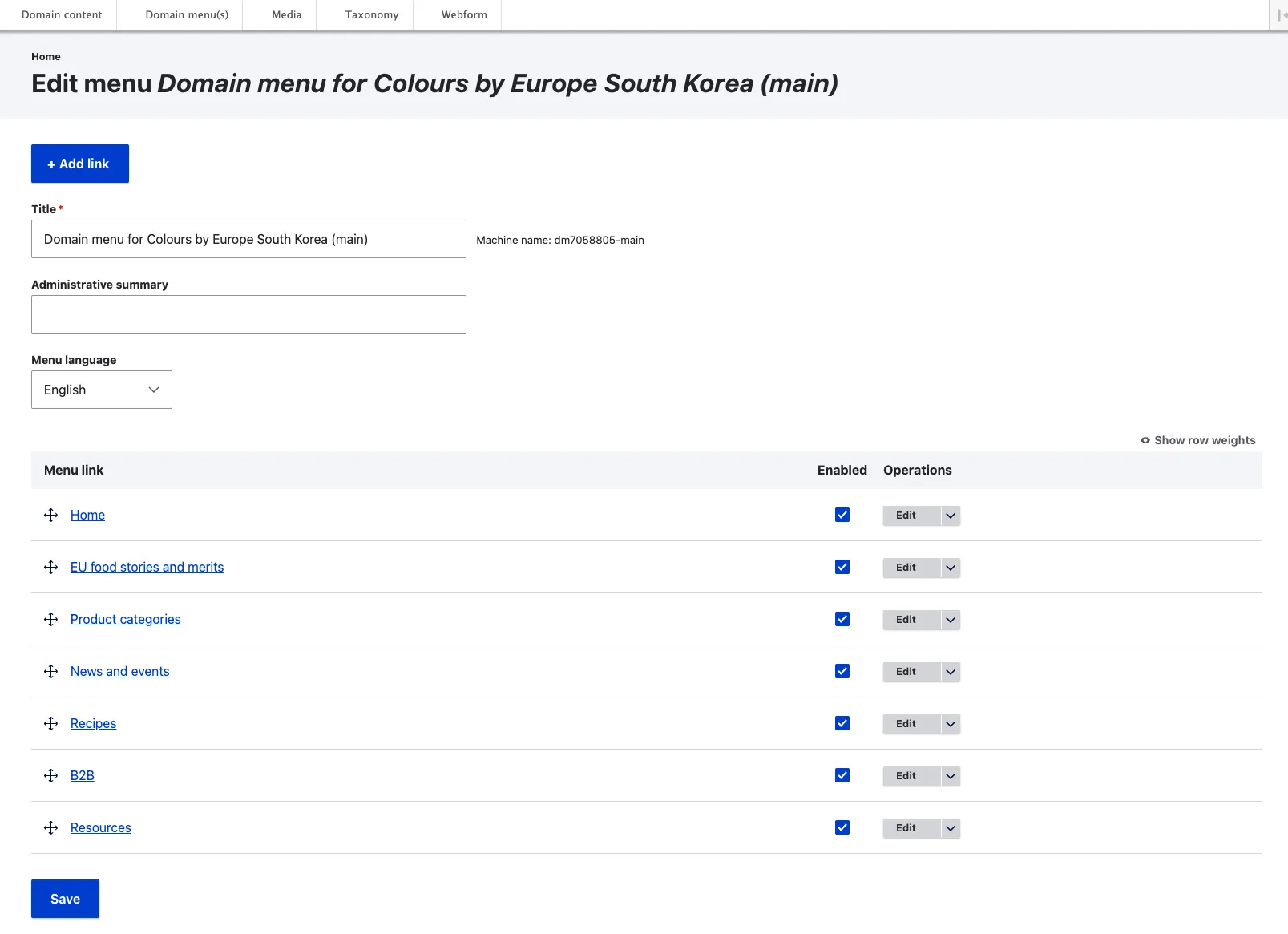
- This action enables you to fully manage existing menu entries, or create nested menu entries if required.
How to add a new menu entry
To add a new menu entry, the content piece must already exist and be in the ‘Published’ state of the editorial workflow.
- Click the “Add link” button.
-
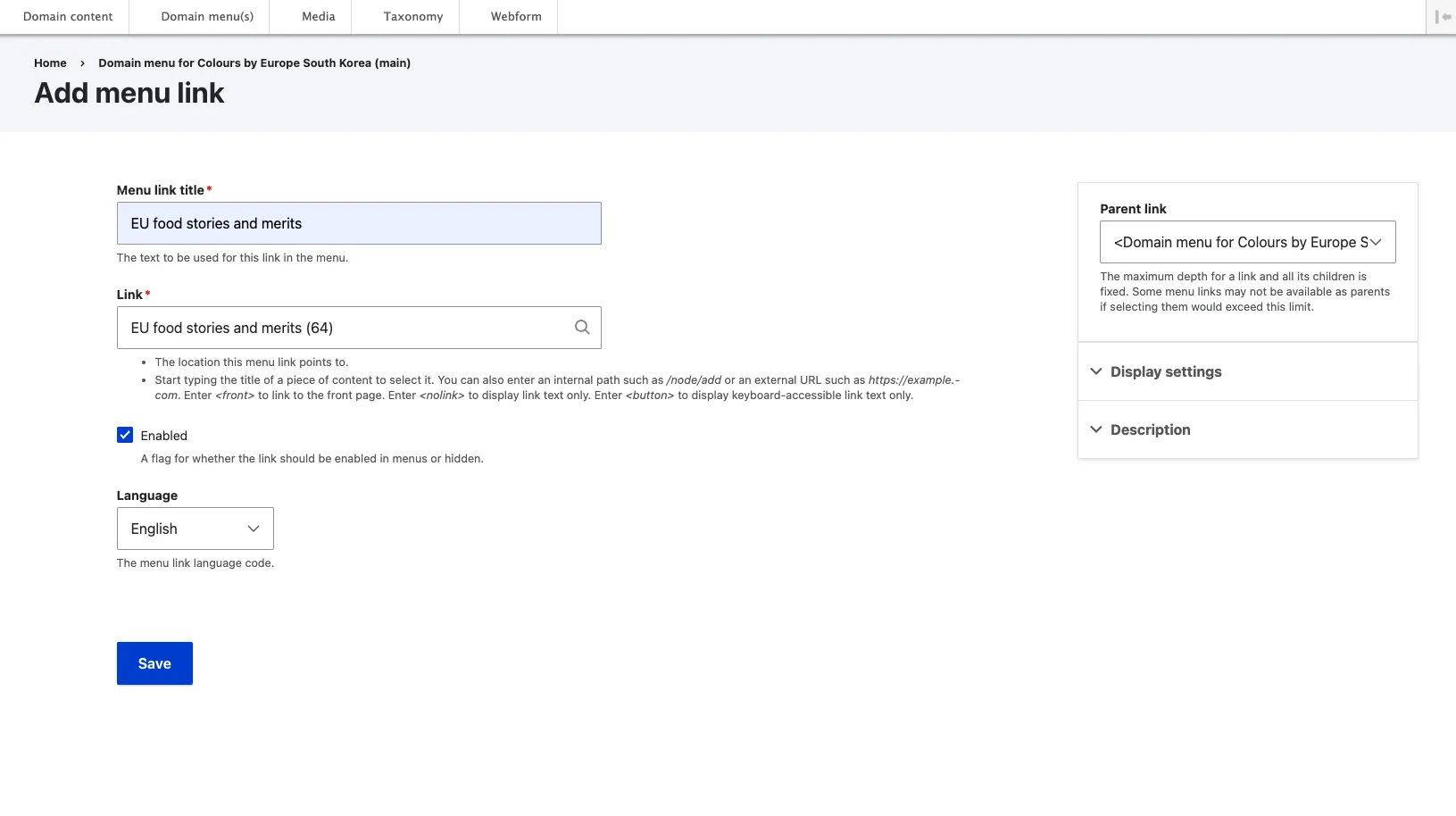
On the ‘Add Menu Link’ interface, you can enter the title for the menu link and the actual link to the content piece that will be displayed in the menu.
- In the link field, begin typing the title of the content piece you wish to link to. The system will display available options. You must actively select an entry from these options. Once selected, the entry will appear with a number in parentheses; this number is the node ID as referenced in Drupal.
-
Click the ‘Save’ button.
How to add menu sub-entries
-
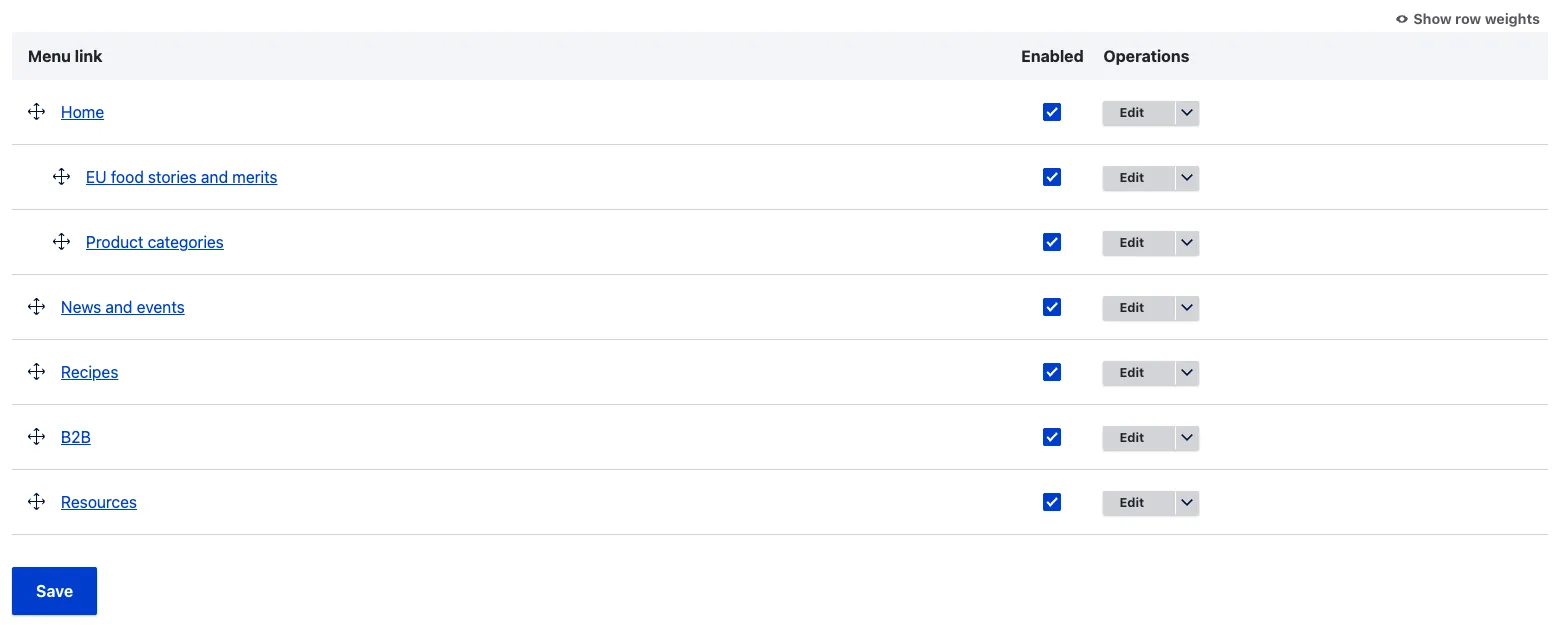
Referred to as nested menu entries, creating these in the EIFE portal is straightforward. Once a menu link entry is created, it can be positioned under the parent menu entry by dragging it using the cross icon located in front of the menu entry.
-
Click the ‘Save’ button.