Managing revisions
managing-revisions #EIFE version 0.1 | 1m Read time
Every time changes are made to a content, the system creates a revision : new draft, validation, reviewing, … each workflow state change triggers a revision of the content.
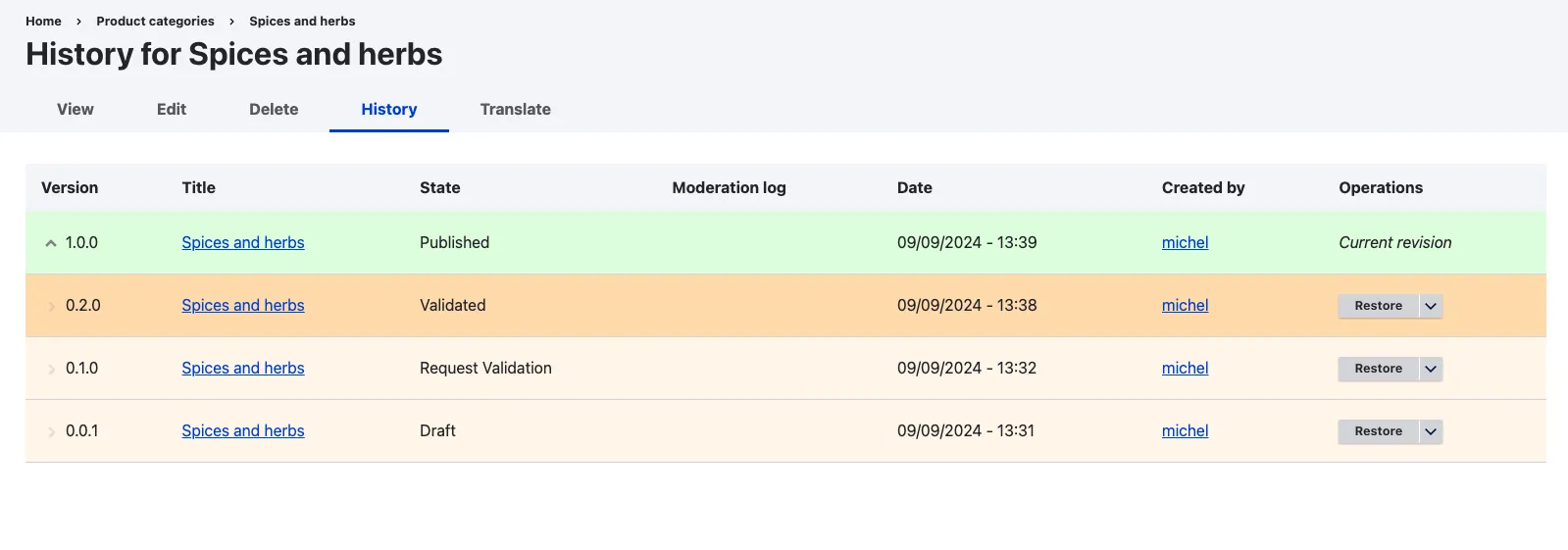
Revisions History Tab
When a content has had several versions, the ‘History’ tab allows you to view past versions, and restore them.
- Moderation Log Messages: When changing workflow states from the frontend, you can add a moderation log message for reference. This helps track changes and informs collaborators about modifications.
- Draft Revisions: When creating a new draft, you can insert a ‘revision log’ message in the message box to the right of the edit form. This is an effective way to communicate changes or important notes to colleagues working on the site.
- History Tab: You can view previous versions of content by clicking on the history tab. The currently published version is highlighted in green for easy identification.
- Version Grouping: Versions are grouped to display only major versions, which typically correspond to published or validated states. When a new draft is created post-publication, it initiates a new major version cycle.
- Minor Versions: Black arrows indicate that versions can be expanded to show all minor versions, including all drafts and changes in editorial status.
- ⠀Translations Count: Each version displays the number of translations available. When publishing a new version, existing translations can either be retained or removed.
- Version Restoration: The ‘Restore’ link enables you to revert to a previous version of the content if needed.