How cloning content works
clone-content #EIFE version 0.1 | 37s Read time
When content is cloned, the system generates an empty draft, populates all fields with the same information as the source content, and saves it as a new cloned draft. You can then edit this cloned draft as needed.
- The clone’s title will have ‘- CLONE ’ added as a suffix.
- All fields containing information specific to the original content, such as the Introduction, Body Text, Subject, and Teaser, will be duplicated.
- Any fields that hold references to other content (such as images, documents, other assets, and references to site link lists) will copy the references and point to the same resources.
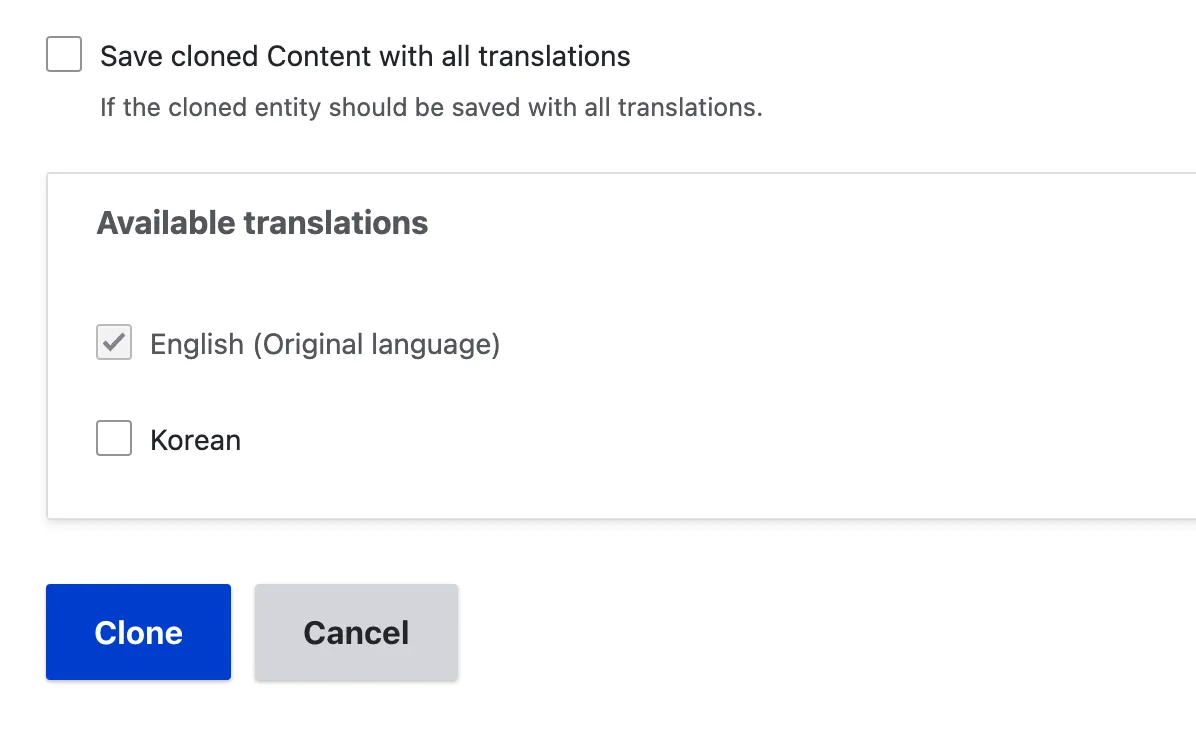
- All existing translations will also be cloned unless the editor actively chooses not to include them.
Note on clonning content
Cloning content between country sites is possible. If an editor manages more than one country site, they should assign the content to the appropriate country after the cloning process is completed. If a piece of content is required from a country site to which the editor does not have editing permissions, a request must be sent to the technical team, who will handle the cloning process.
Clone content interface
The clone content interface is available from the menu, just like the history and translate tabs.

When cloning content, the editor has the option to manage the cloning of translations available for the node.

If translations are not required, clearing the checkbox will clone only the EN version and allow the editor to select which translations to include in the cloning process.