Media content items
media-content-items #EIFE version 0.1 | 2m 45s Read time
The media content items allow you to add various types of media to your page, creating a more engaging and visually appealing experience for visitors. These items can be used to embed different types of assets directly into the body of the page, ensuring the content is dynamic and interactive. Below is a list of available media content types you can utilise within various content types across the EIFE portal.
Media of type image
View edit form
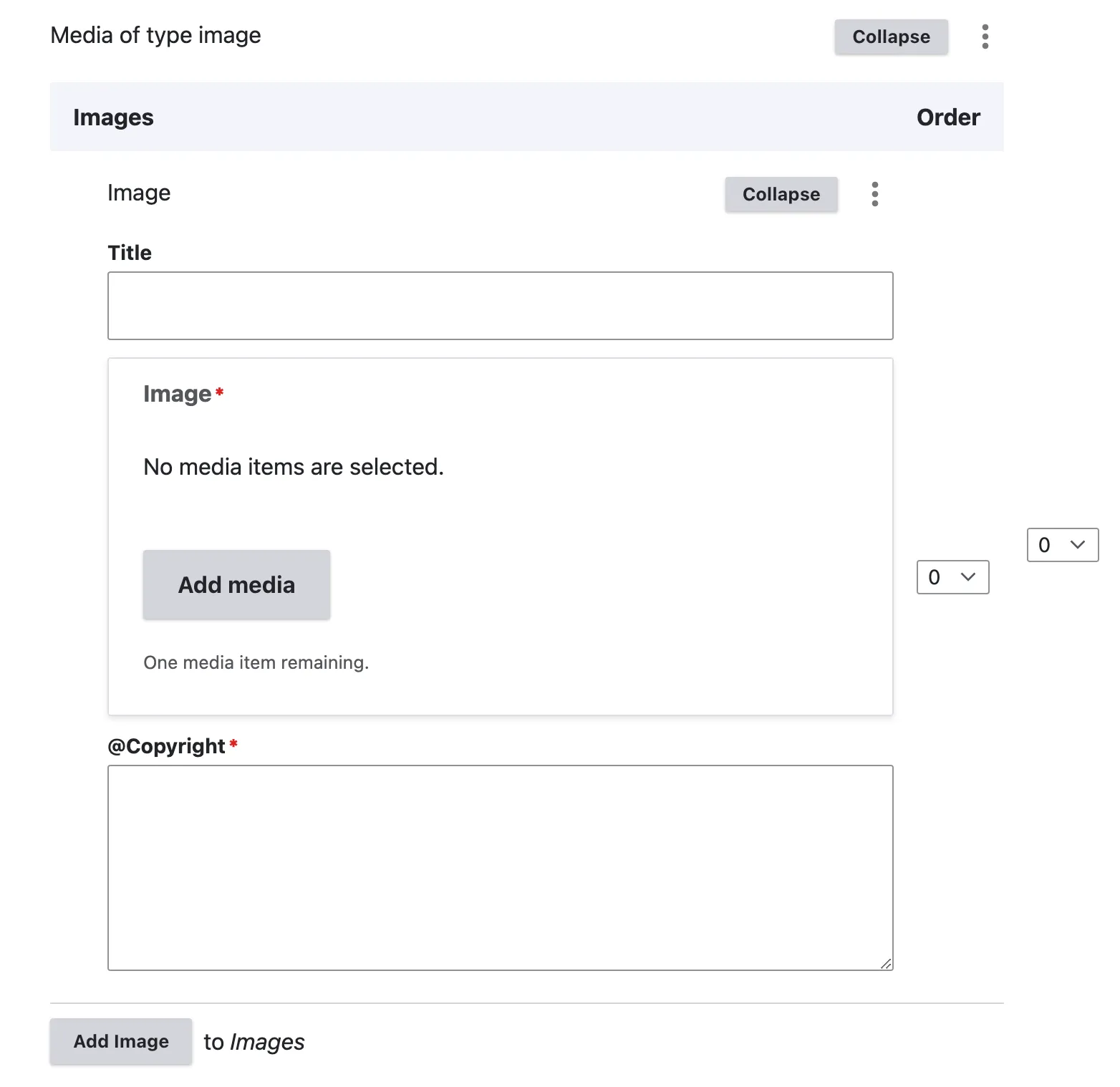
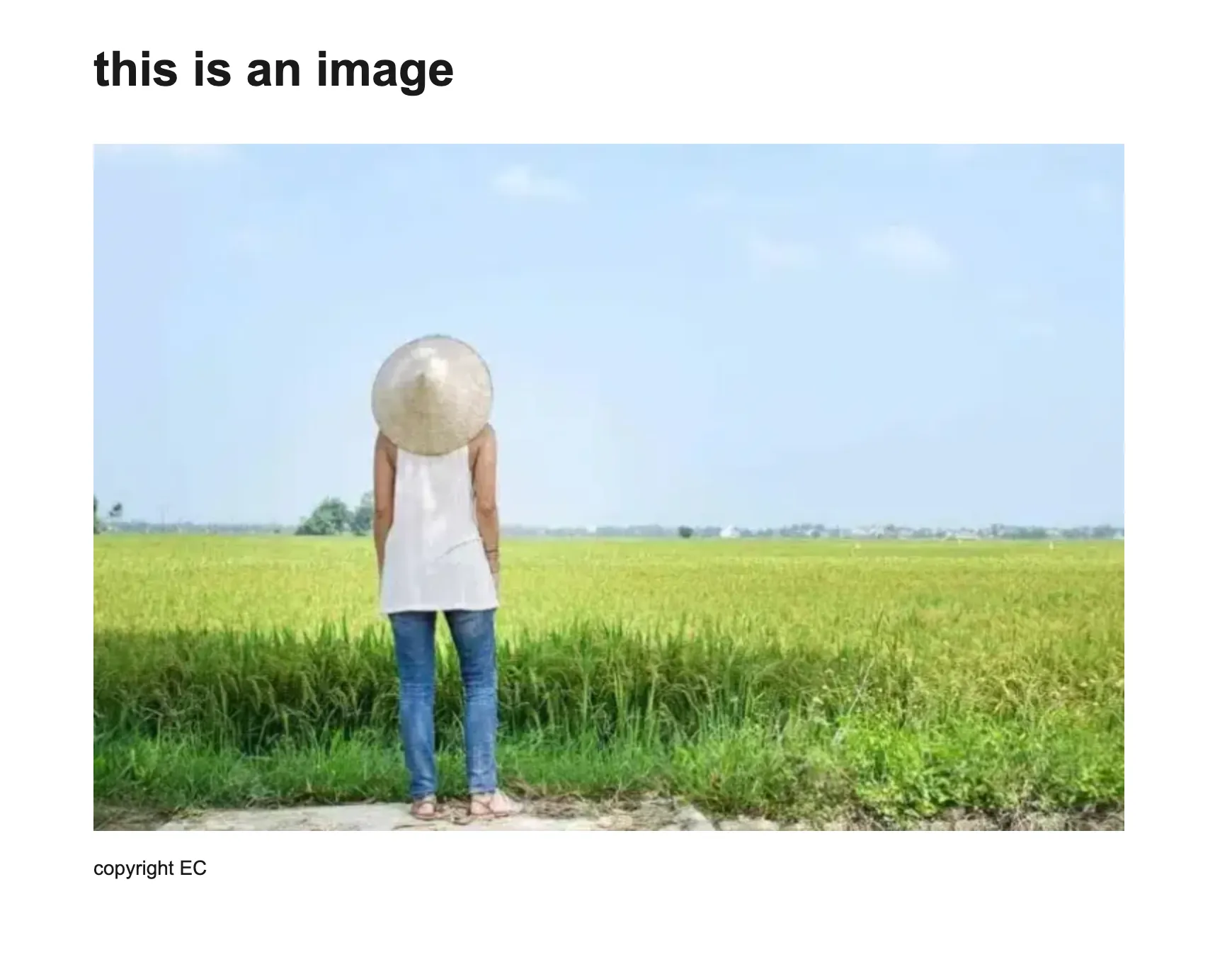
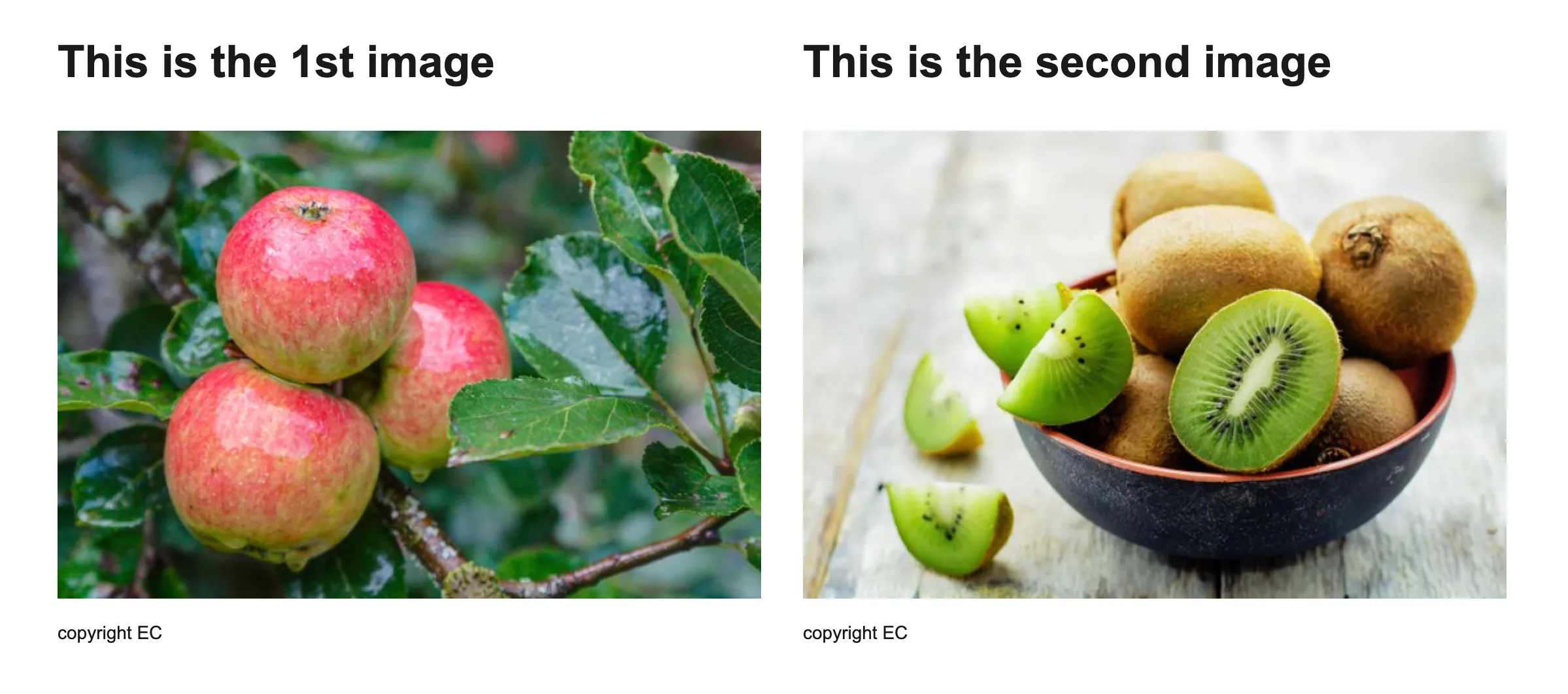
The title will be an H2, displayed above the image within the body of the page. To comply with copyright policy, a copyright notice must be provided for the image. The “Add Image” option allows you to upload a second image aligned in the same row. If only one image is uploaded, it will be centred on the page.
View display mode 1 image
View display mode 2 images
Media of type video
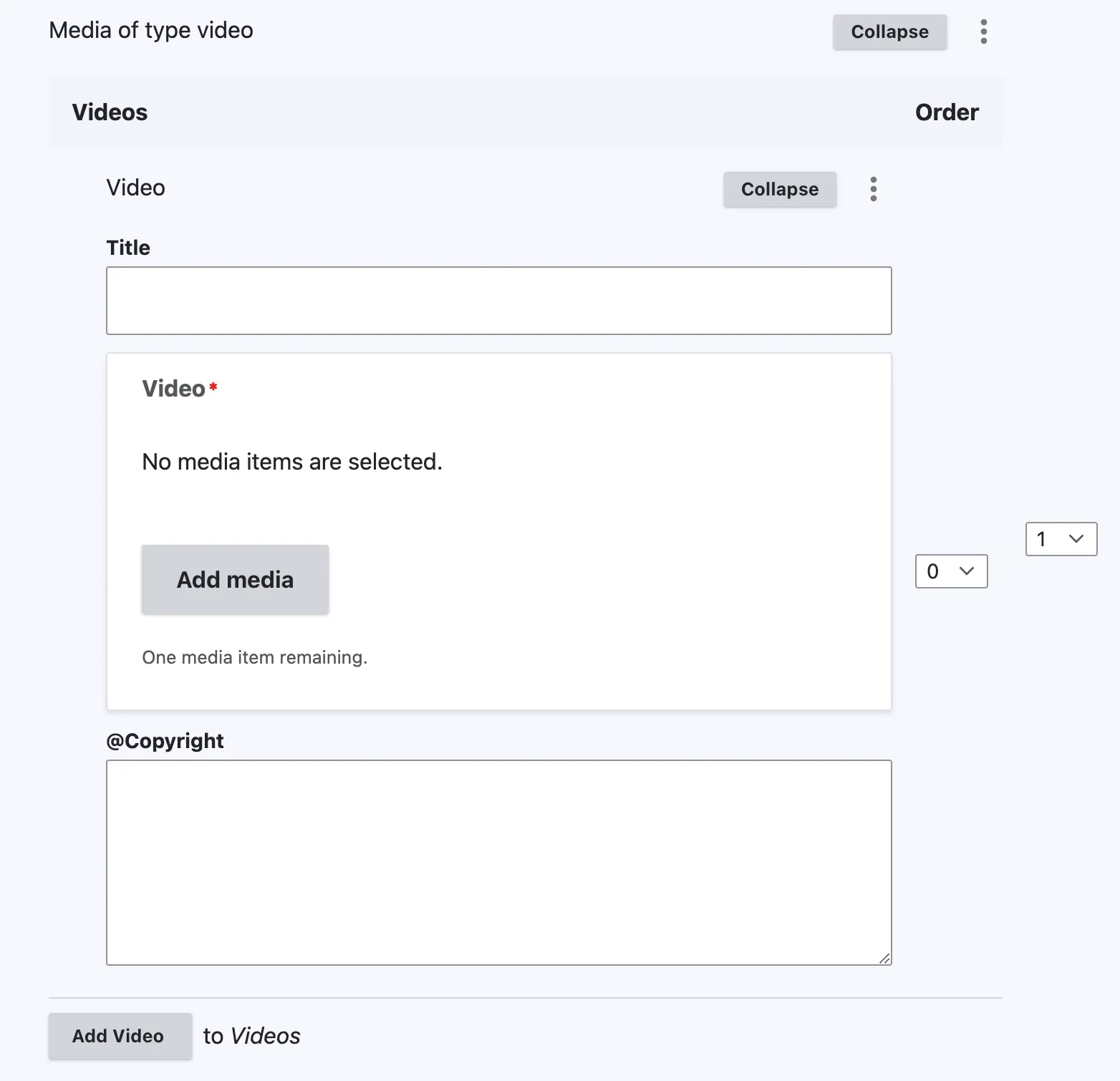
View edit form
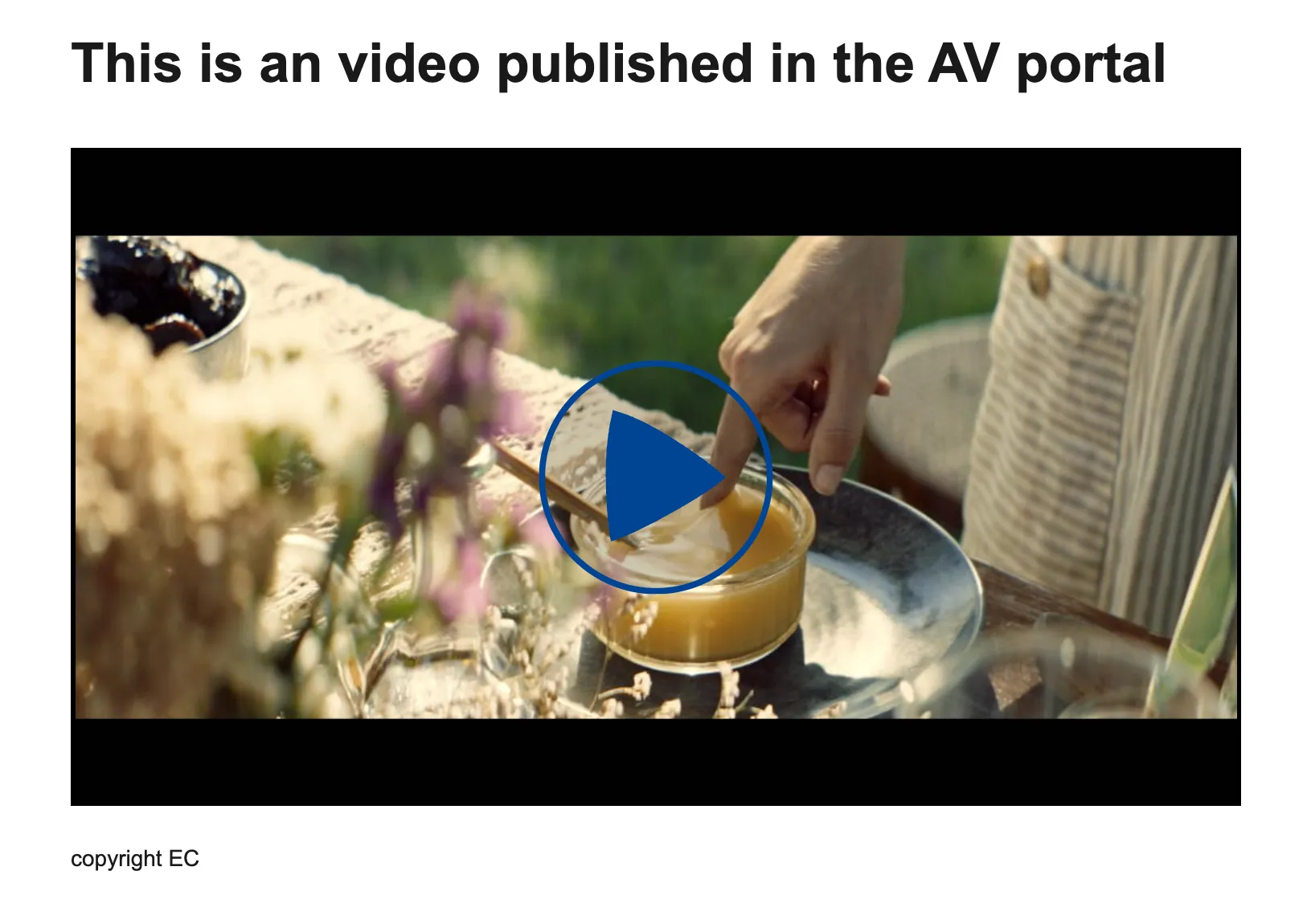
The title will be an H2, displayed above the video within the body of the page. To comply with copyright policy, a copyright notice must be provided for the video if necessary.
The “Add Video” option allows you to upload a second video aligned in the same row. If only one video is uploaded, it will be centred on the page.
View display mode 1 video
View display mode 2 videos
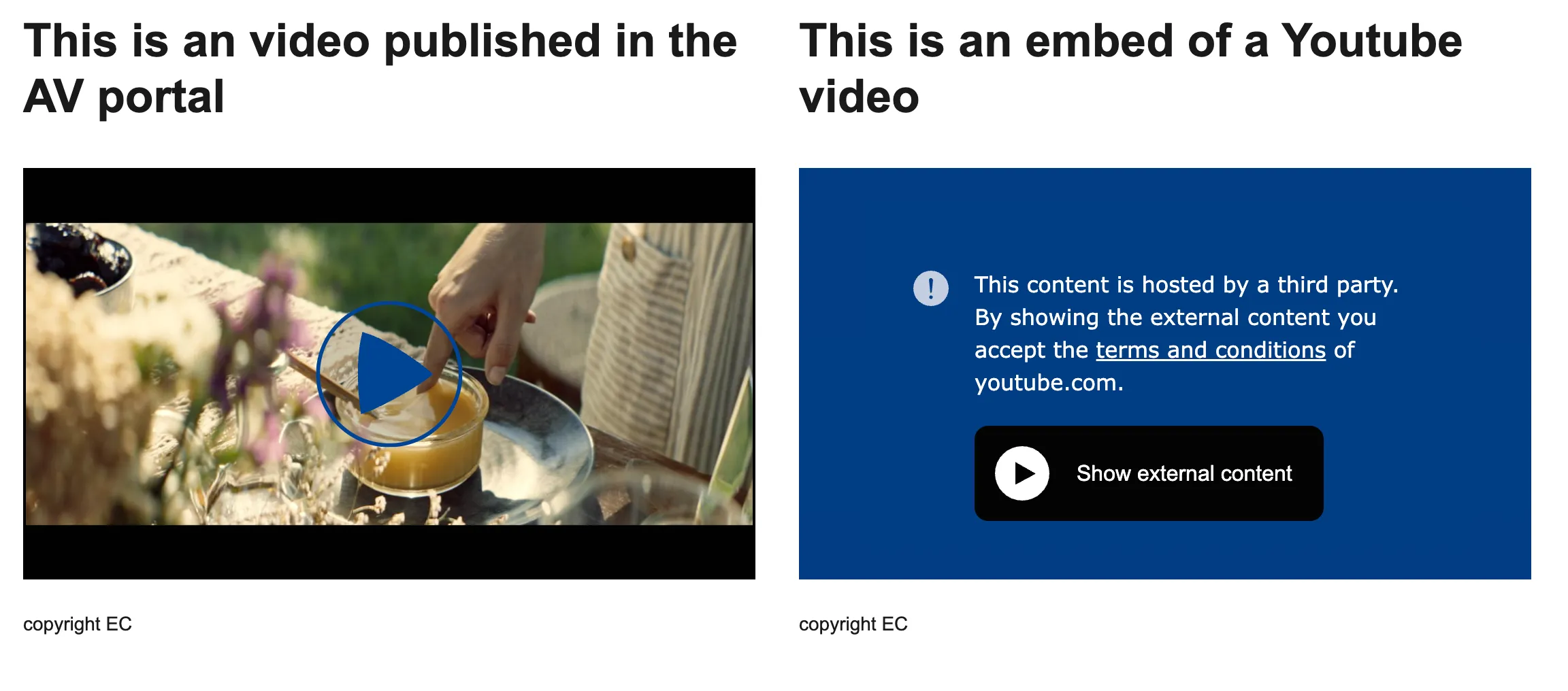
Note - on videos
Third-party hosted videos (YouTube or Vimeo) are subject to iframe restrictions for GDPR compliance. Users must accept the conditions the first time they wish to view a video. Once accepted, the restrictions are lifted for all other third-party hosted videos on the EIFE portal.
Illustration list with images
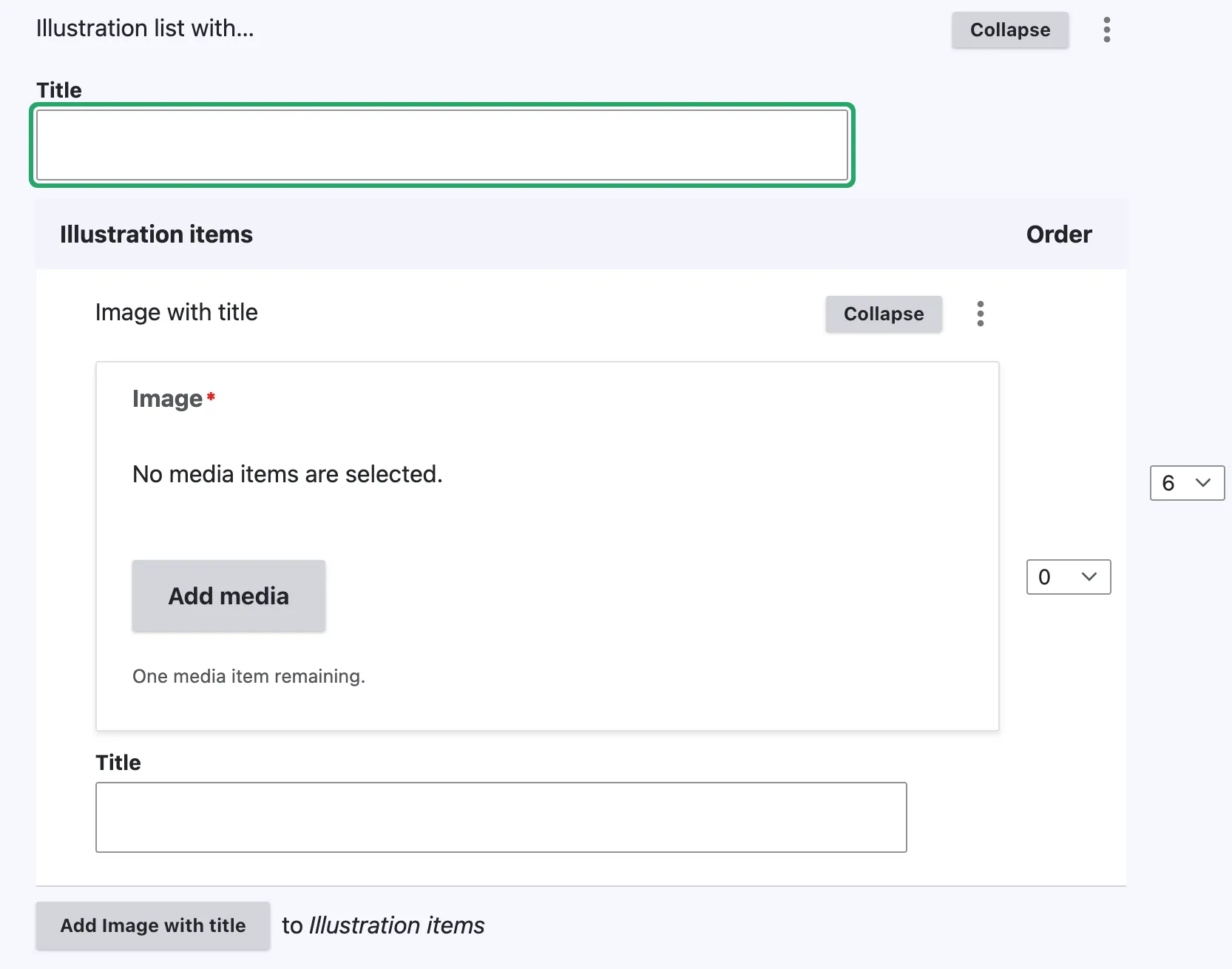
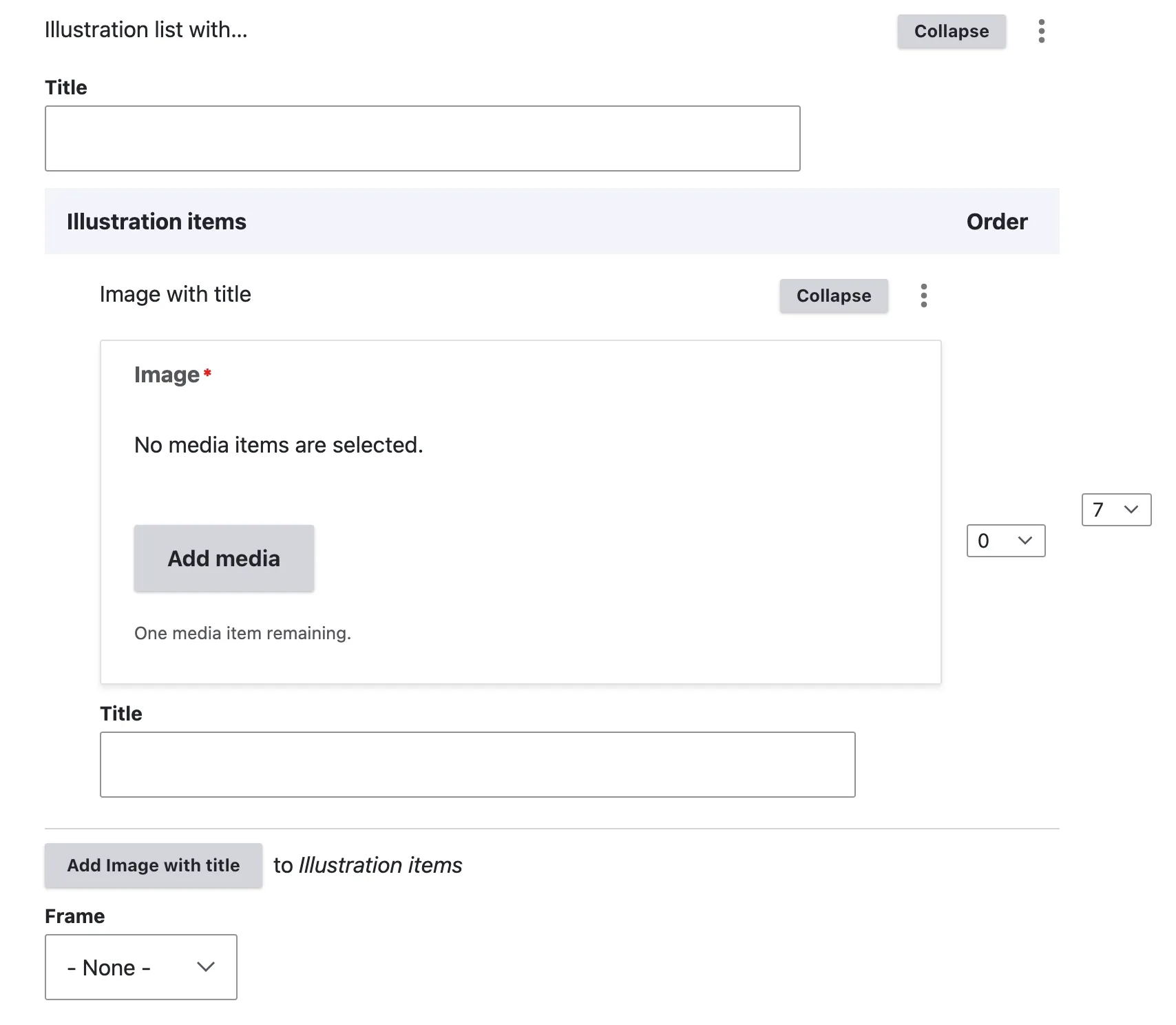
View edit form
The Illustration List with Images feature enables the addition of visually appealing sections designed to convey clear messages through a form of infographic. These sections include concise, impactful lines. The ‘Title’ field uses an H2 tag and serves as the section title. Additional titles appear beneath the images, functioning as slogans to describe the visuals. Images are automatically cropped by the system as illustrated below.
View display mode
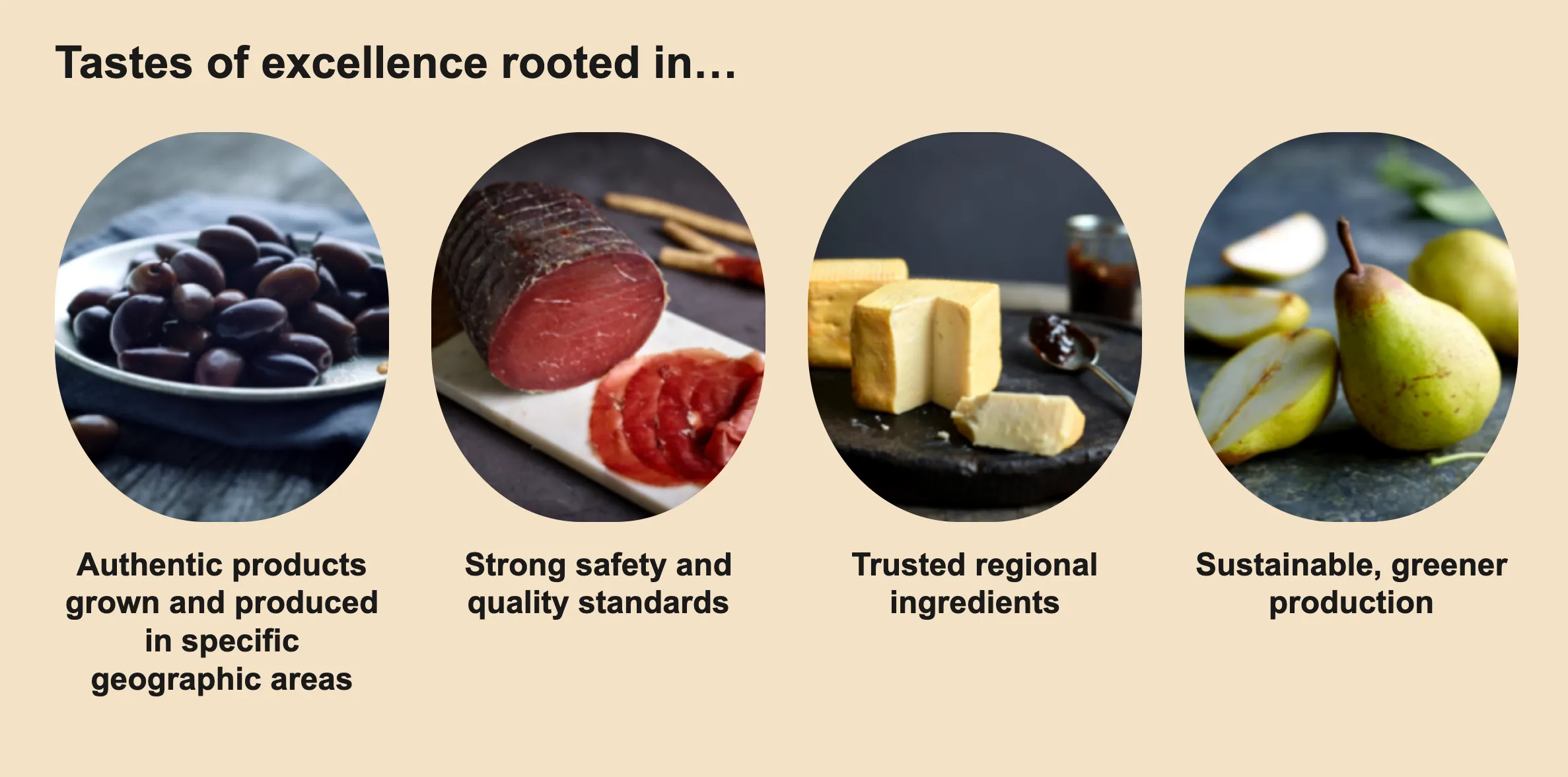
Illustration list with logos
View edit form
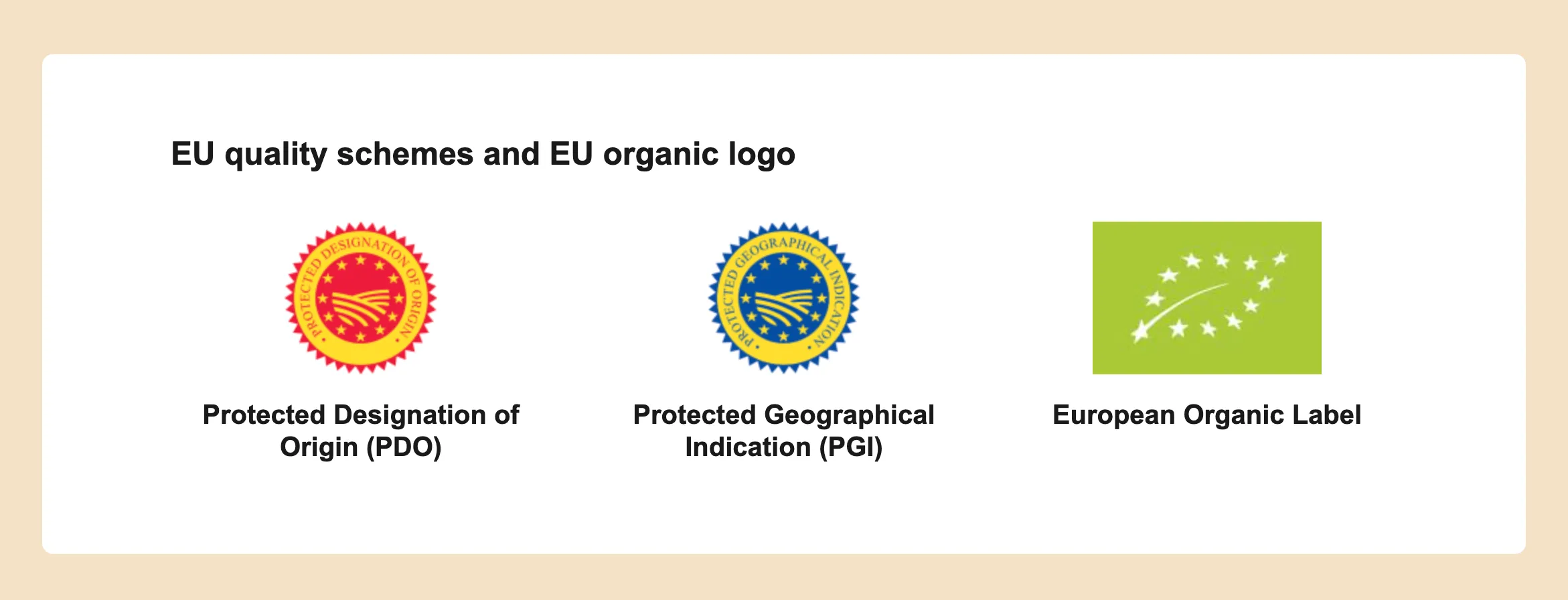
The “Illustration List with Logos” feature is designed to enrich your content with visually engaging sections that effectively convey key messages using logos. Each section combines distinct, to-the-point text with corresponding logos to enhance the visual appeal and clarity of communication.
The ‘Title’ field is formatted as an H2, acting as the main header for each section. Additional text accompanying each logo serves as a brief description, providing context or emphasis to the imagery. Logos are automatically adjusted and aligned by the system to ensure consistent presentation across the page section.
View display mode
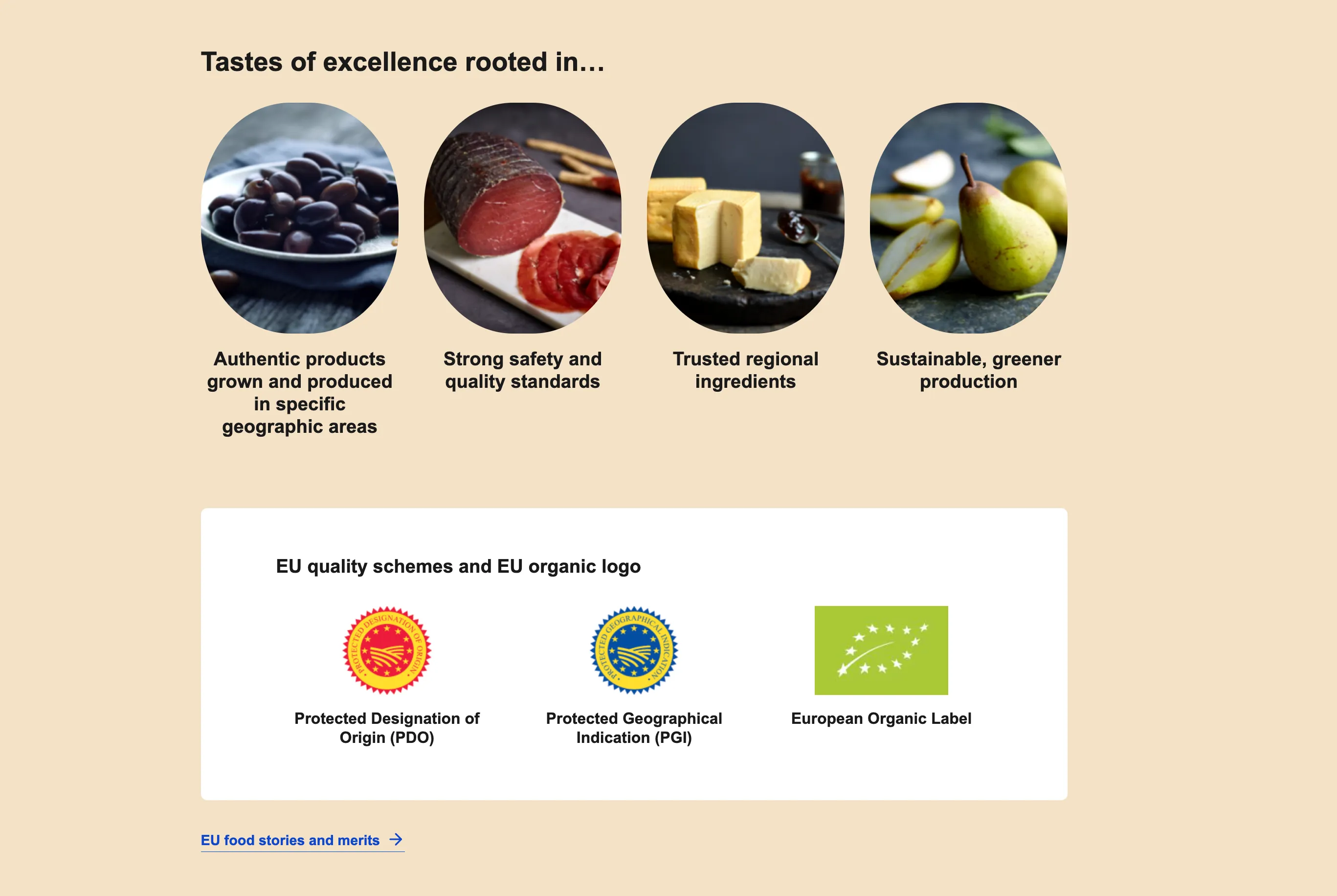
A frame can be added to visually differentiate between the logo background and the section background. This is particularly useful when combining features such as the ‘Illustration List with Images’ and the ‘Illustration List with Logos.’ The frame helps to distinguish each element, ensuring that logos and images stand out distinctly against varying background colours.
Map
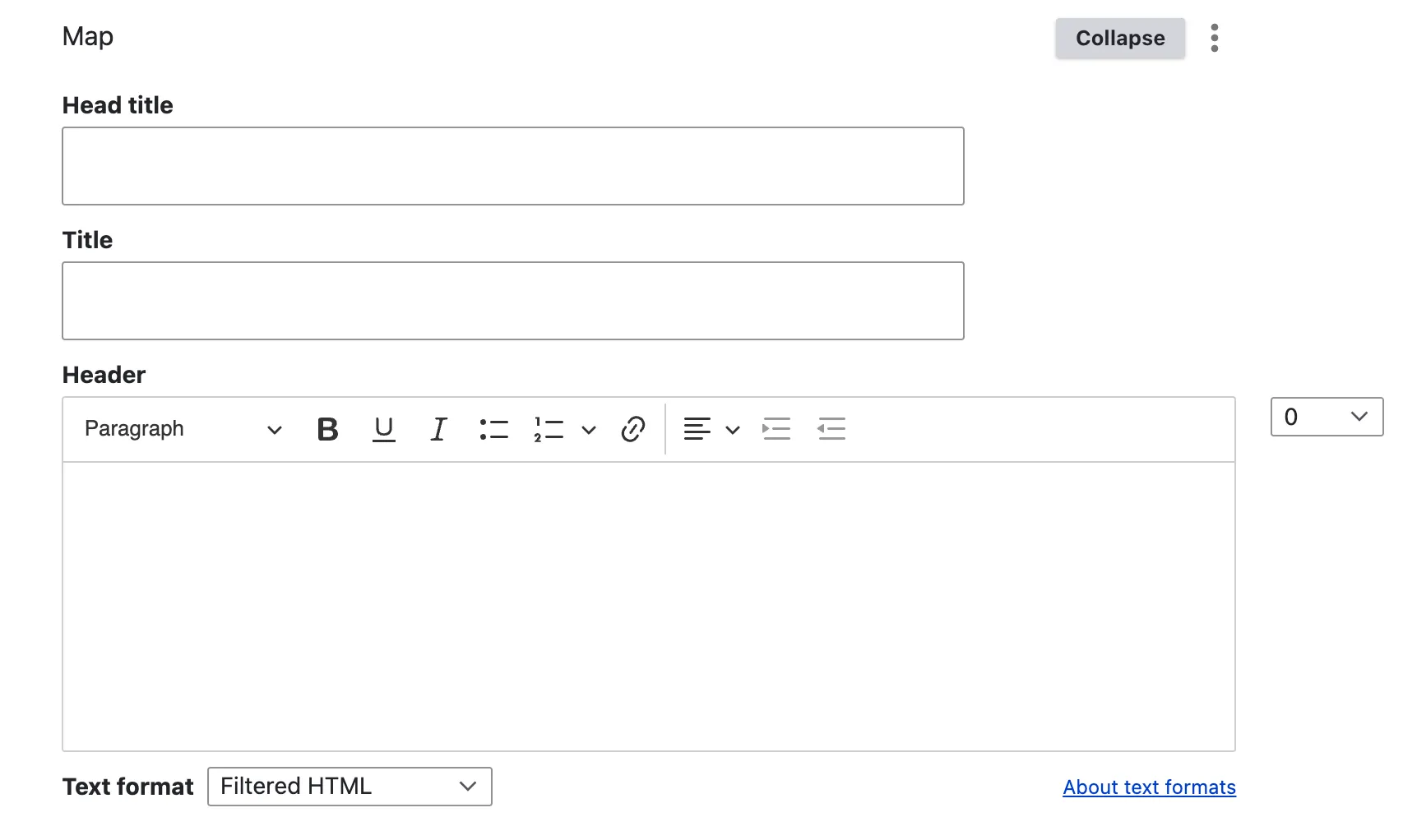
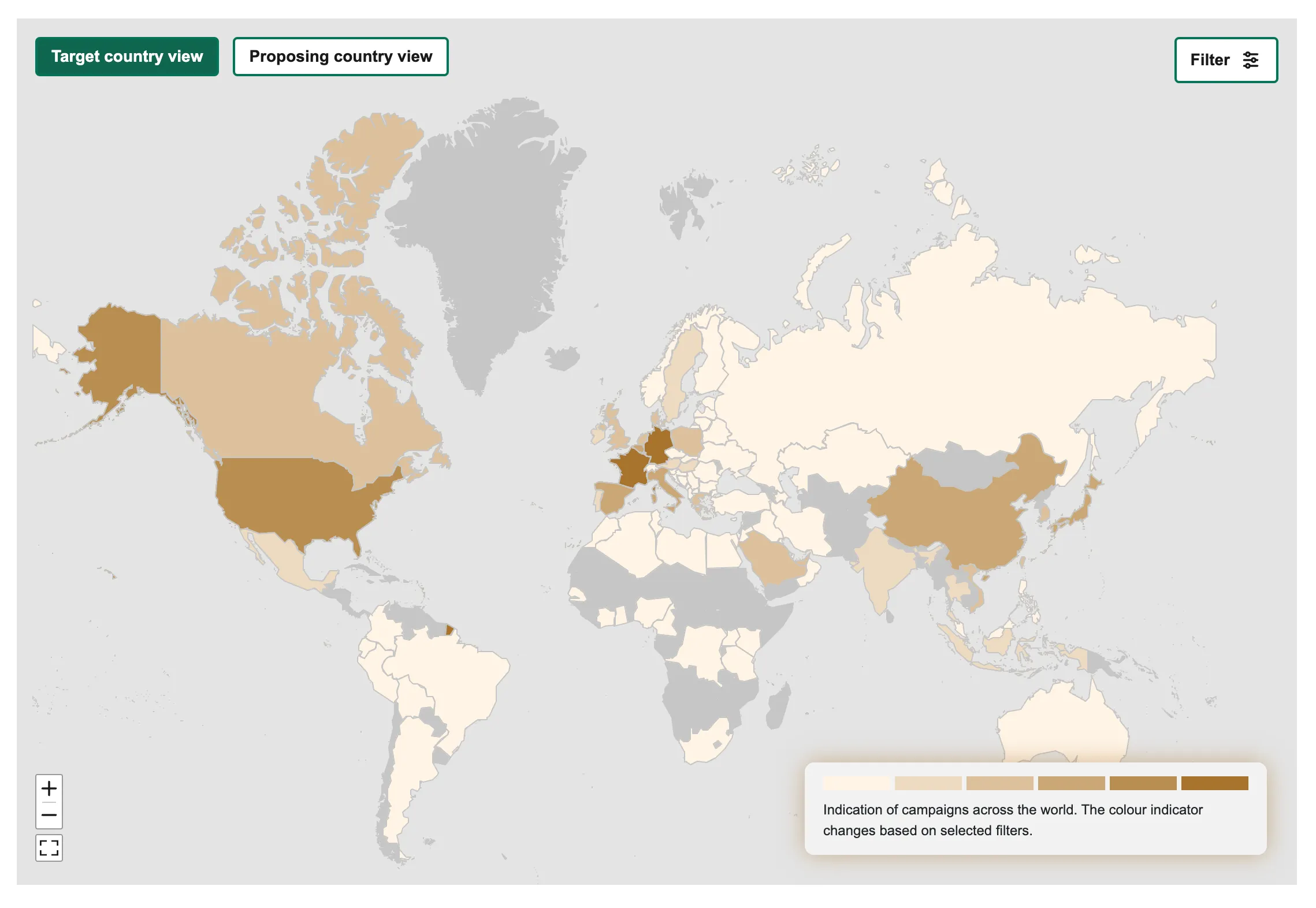
The map item allows editors to showcase how EU food and drinks are presented in global markets, as part of campaigns and events that are either co-financed or directly organised by the European Commission.
View edit form
This is a simple form that allows you to add a title and body text to introduce the map. The map itself cannot be updated or modified by editors and serves the single purpose outlined above.
View display mode
Resources related
View edit form
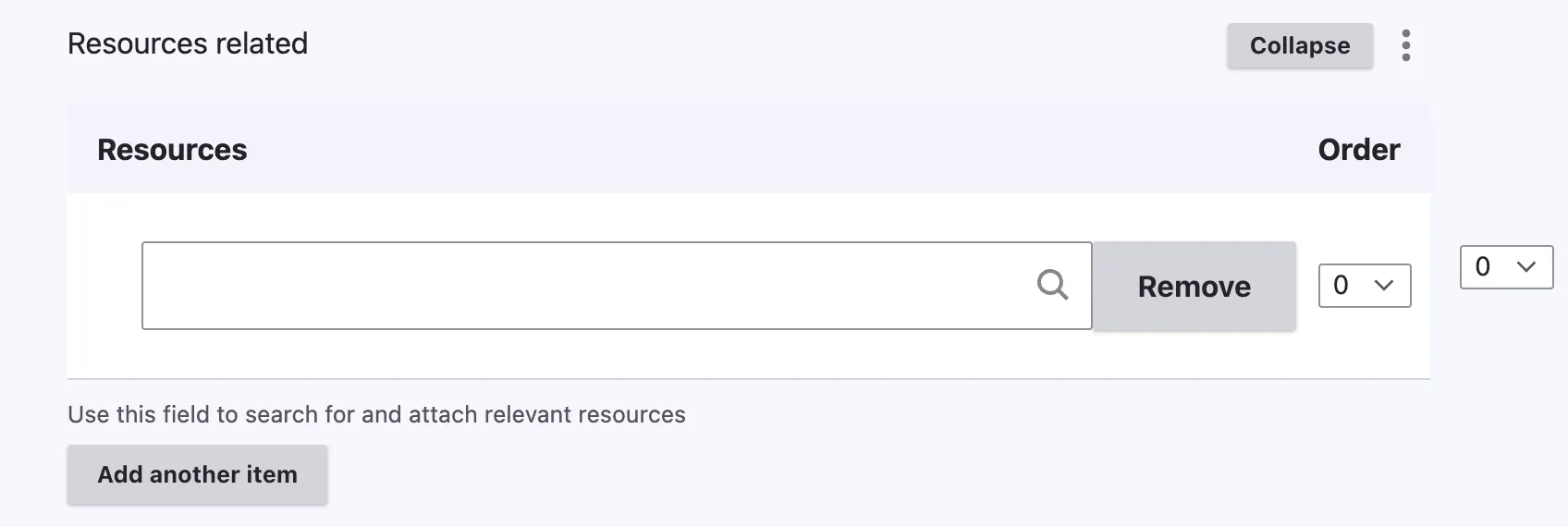
When creating or editing content, you may wish to use the same asset in multiple places without uploading it repeatedly, thus avoiding duplication. You can achieve this by referencing the asset across various content types using the resource-related content item.
Type the title of the resource you wish to add to the page. More than one resource can be added by using the “Add Another Item” button.
Note - on Related Resources
The resource must already exist on the website before it can be referenced on the page.
View display mode