Event Site content type
event-site-content-type #EIFE version 0.1 | 4m20s Read time
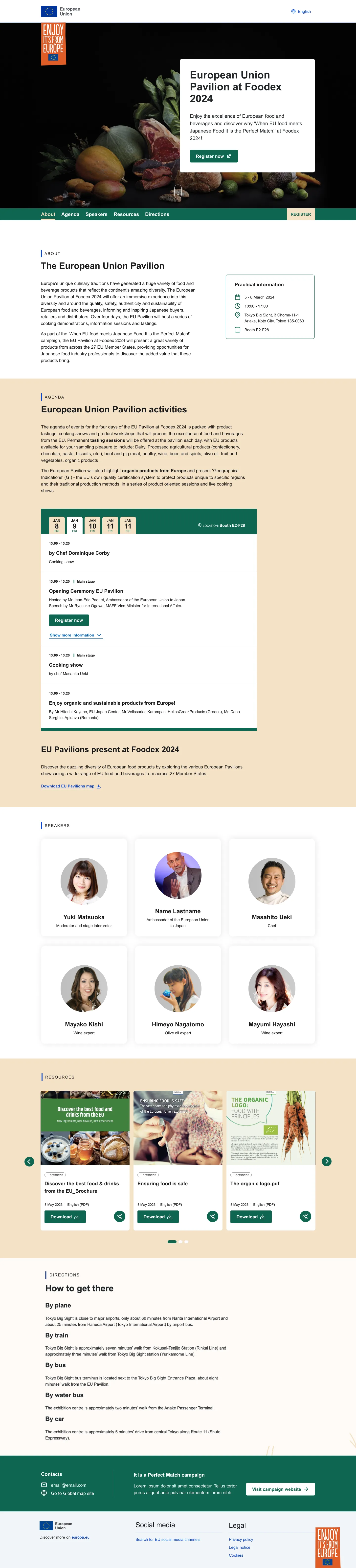
This is a one-page site specifically designed to promote a single event. This template is a unique instance of the EIFE portal that can be requested for events at the country level. It is ideal for showcasing important events such as trade fairs, expos, or similar occasions where European food and beverages will be promoted within a specific country or region.
The one-page layout is streamlined to focus on key event details, providing visitors with a concise, yet impactful presentation. It’s particularly useful for events that require a strong, localised promotional effort, highlighting the quality and variety of European products to international audiences. Whether the event is regional or national, this template ensures that all relevant information is presented clearly and attractively, driving engagement and promoting participation.
Creating an event site
First got to domain content => your country site domain => Add content => Event site
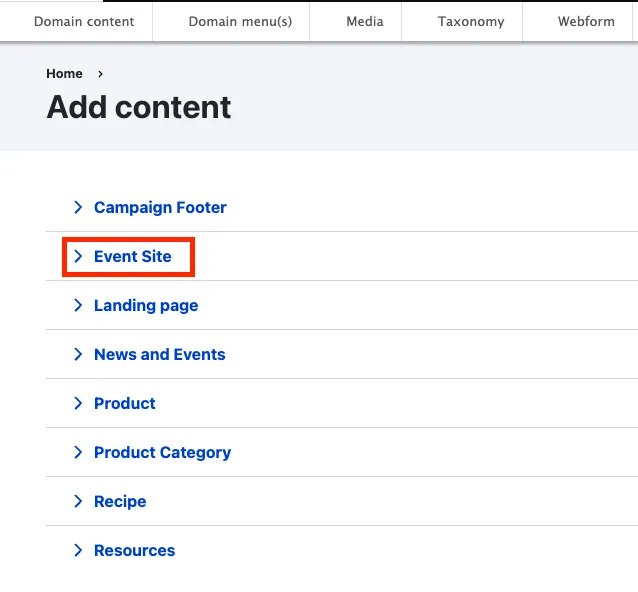
Event site backend from tabs
As most content types, the event site edit form is organised using tabs :
Header tab
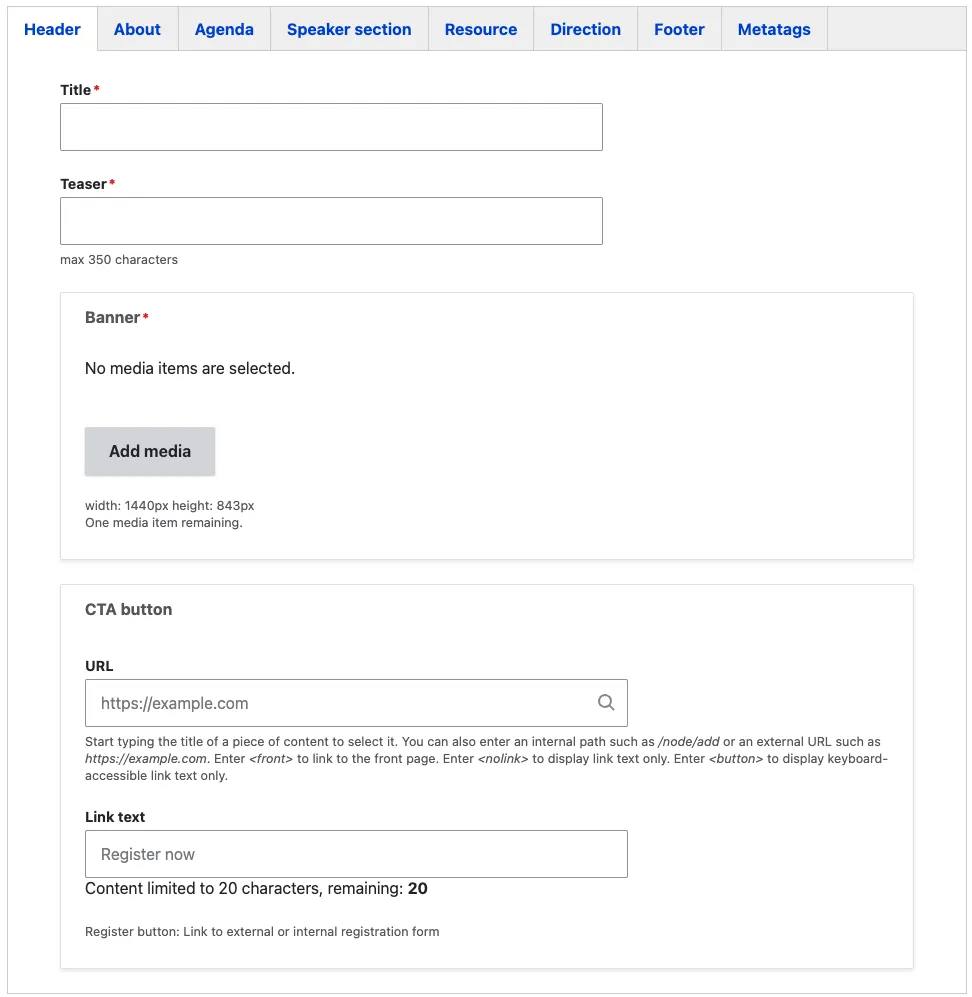
This tab holds the “header content” part of your event site page
The title of the event serves as the page’s H1 heading, ensuring clear identification of the event. The teaser text is limited to 350 characters, allowing for a concise summary that provides essential information to engage visitors quickly.
For the banner image, it is recommended to use horizontal images with a 16:9 aspect ratio to maintain visual integrity. A common size is 1920x720, but any image that follows these proportions will display properly without unwanted cropping.
The CTA (Call-to-Action) button enables you to link to an external or internal registration form, guiding visitors to sign up or learn more about the event easily.
About tab
The “About” tab allows you to provide detailed information about your event, including practical details. You can add event-related content using the Add Event Site Section, which includes a title, text, and a CTA button.
The Practical Information section enables you to add the timezone, which is mandatory to ensure that the event time is displayed accurately for your country site’s target audience. This feature also allows visitors from other countries to view the event time adjusted for their own timezone.The Hide Time option allows editors to conceal the event time if it has not yet been set.
The Event Site Practical Information section lets editors add key event details in a concise format, accompanied by icons. Available information includes Calendar, Agenda, Date, Time, Location, and Venue, helping to provide clear, essential information about the event.

Agenda tab
The Agenda tab allows editors to create an agenda for the event. It is built using various content items, offering the flexibility needed to structure the agenda as the editor deems appropriate, ensuring it meets the specific requirements of the event.
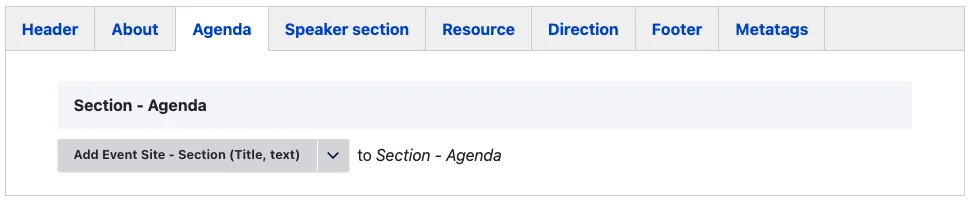
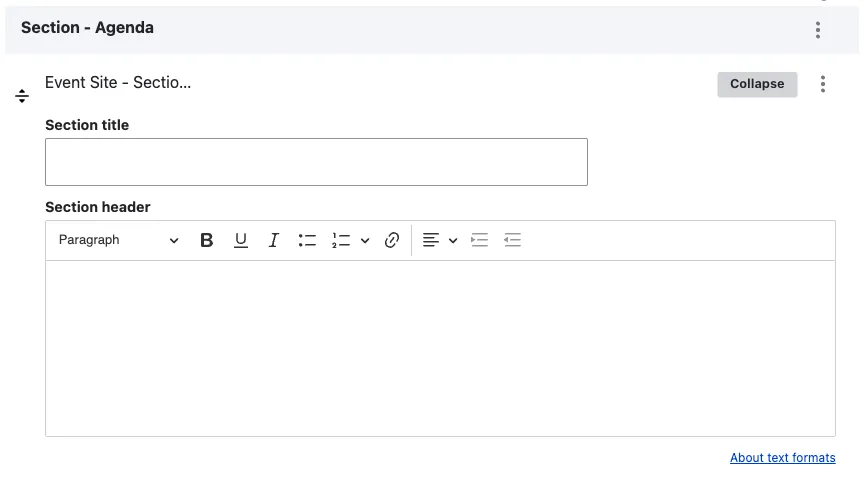
The Event Site Section Title is used to add a title and introductory text to the agenda, providing context and background information for the event.
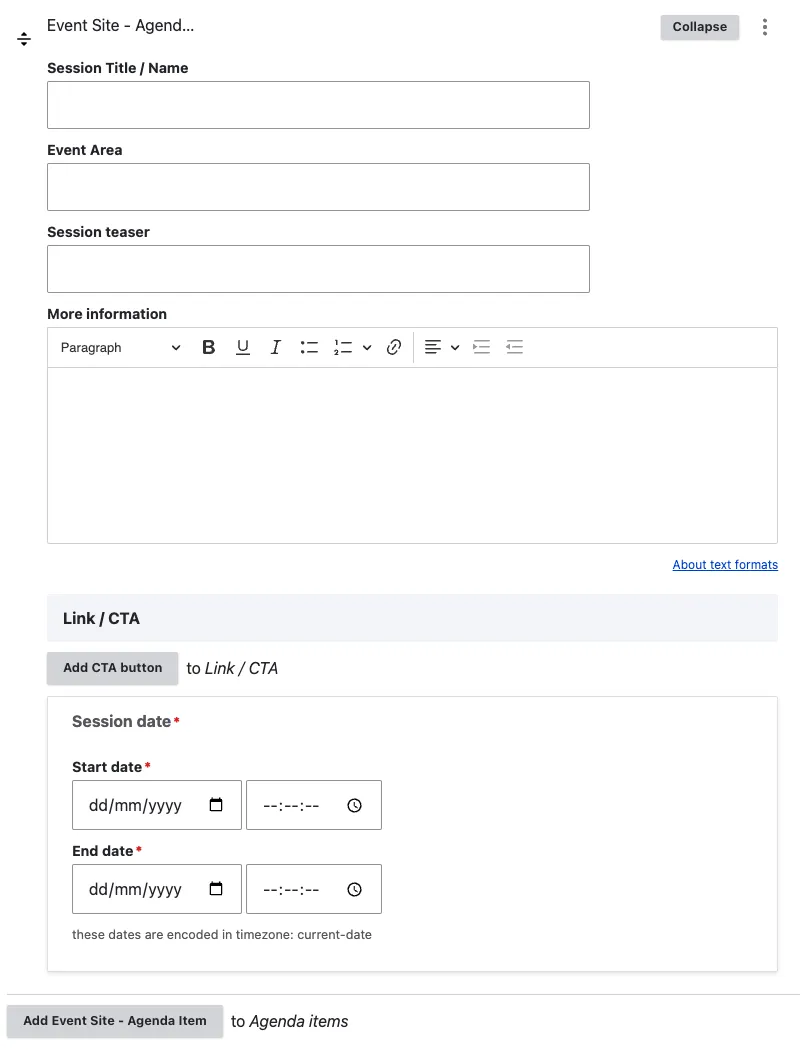
The event site agenda content item allows editors to add agenda details. The session title/name, event area, and session teaser make up the visible part of the agenda, while additional information is hidden in a toggle that visitors must click to view. A CTA button can be added to link to external or internal pages if needed.
The session date and time are mandatory, as they provide not only the timing but also allow categorisation of sessions by date and time. For events occurring at different times or on different days, additional sessions can be added using the “Add Event Site - Agenda Item” option.
Speaker section tab
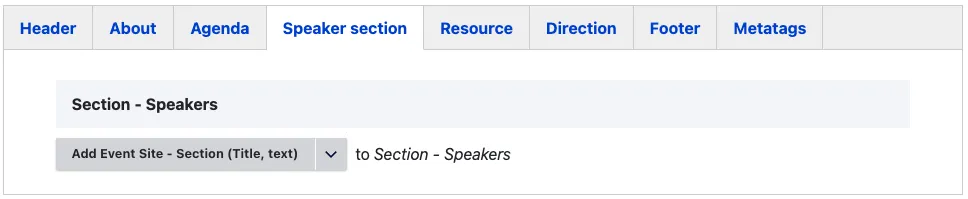
The speakers tab enables editors to include information about event speakers. It is composed of multiple content items, providing the necessary flexibility to organise the section according to the event’s specific needs and the editor’s preferences.
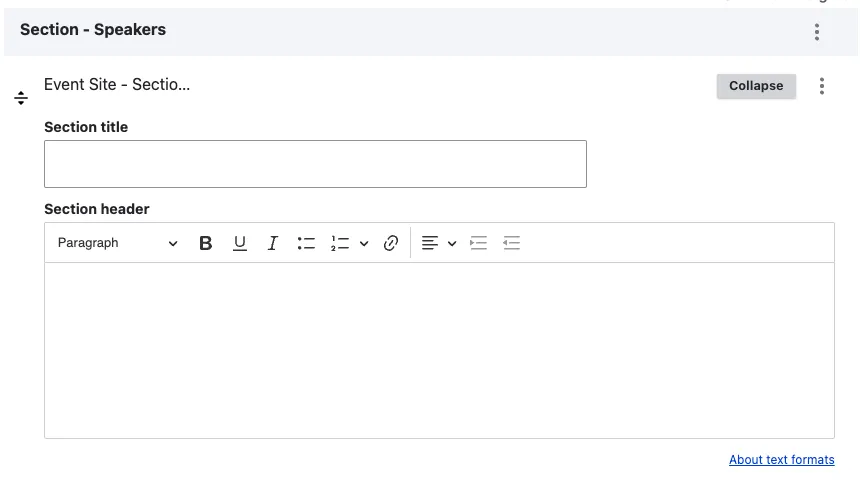
The Event Site Section Title is used to add a title and introductory text to the speakers section, providing context and background information for the event.
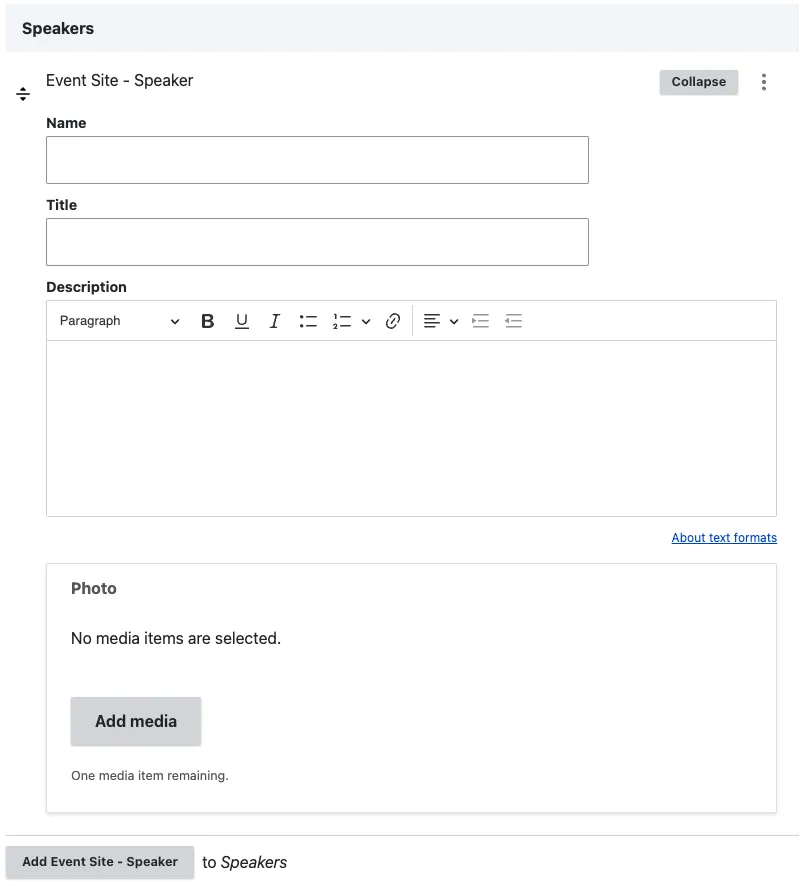
The event site speaker content item allows editors to add speaker details such as name, title, photo, and a description. The description is only displayed in a drawer that opens on the right side when the speaker’s image is clicked. To add additional speakers, the “Add Event Site Speaker” button must be used.
Editors have also the possibility to add a CTA (Call to Action) Button. This feature provides a convenient means to link to either internal or external content, extending the engagement potential of the page.
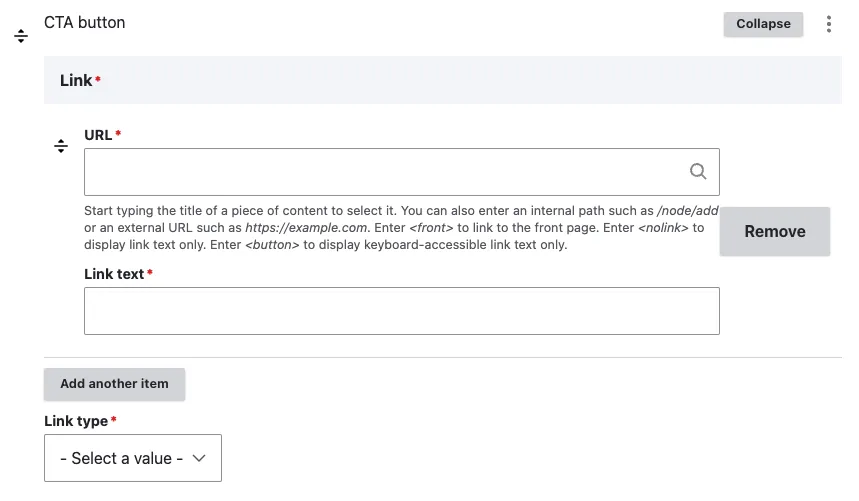
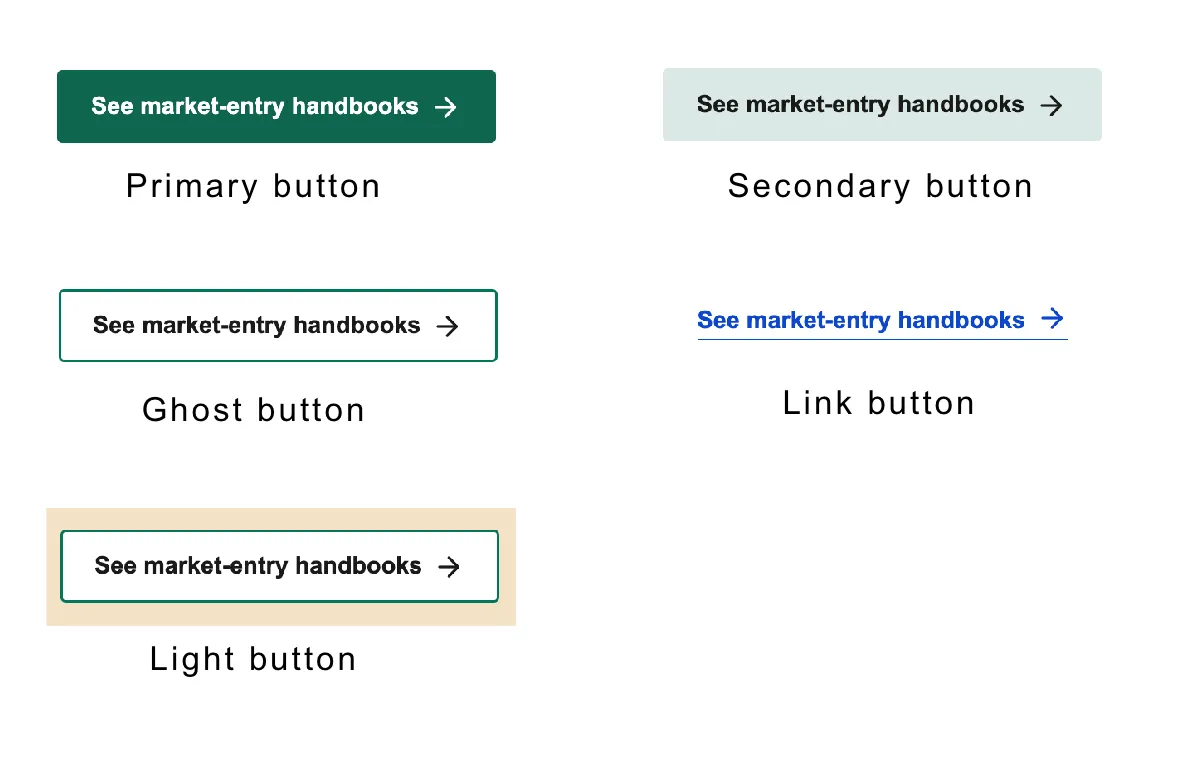
There are five different types of button styles that can be selected.
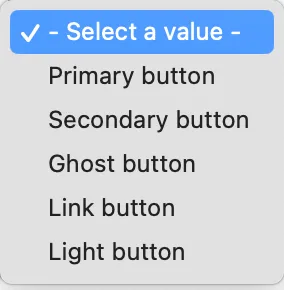
Available type of buttons
Note - on buttons
The Ghost button has a transparent background, and its colour matches the background on which it is placed, outlined with a primary colour border. The Light button always has a white background, irrespective of the surrounding colours.
Resource tab
The resources tab allows editors to add supporting materials for the event. It consists of various content items, giving editors the flexibility to arrange the section to suit the specific requirements of the event and their personal preferences.
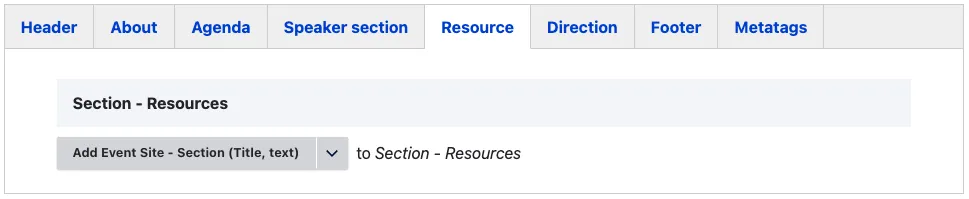
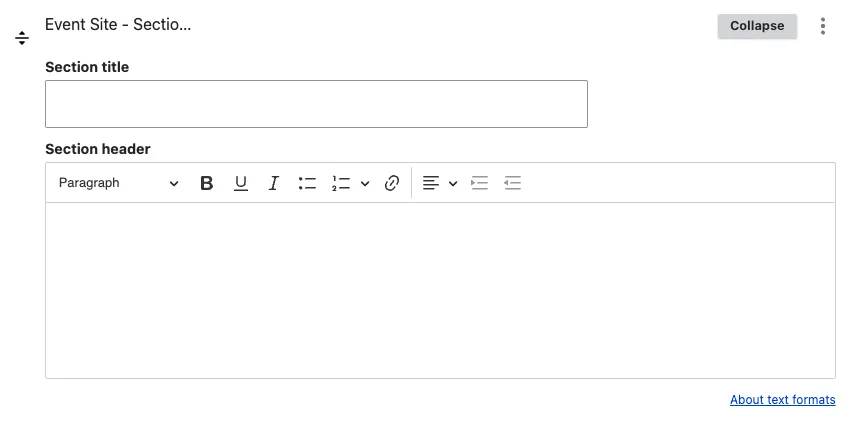
The event site section title is used to add a heading and introductory text to the resources section, offering clarity on the supporting materials available for the event.
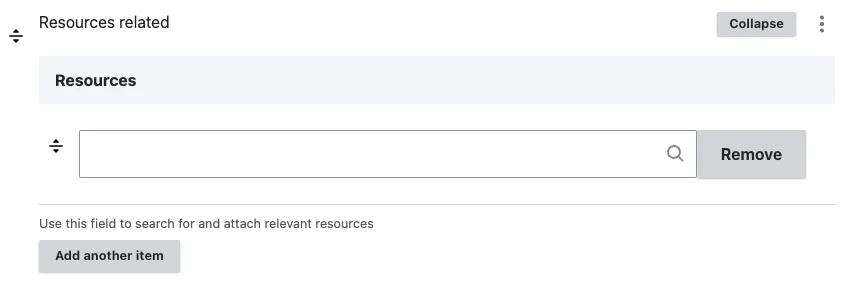
To add a resource to the event site page you may use the resource field to reference any existent material of type resource. Resource might be of the following type: Media (AV channel, Youtube, Vimeo), file and image.
Type the title of the resource you wish to add to the page. More than one resource can be added by using the “Add Another Item” button.
Note - on Related Resources
The resource must already exist on the website before it can be referenced on the page.
Editors also have the option to add a CTA (Call-to-Action) button within the resources section.
Direction tab
The event site section title is used to add a heading and introductory text to provide clear instructions on how to reach the event venue.
Editors also have the option to add a CTA (Call-to-Action) button within the resources section.
Footer tab
Editors can use the following tab to add a custom footer, replacing the default country site footer. For more details, refer to the campaign footer content type.
Metatags tab
The Metadata option in EIFE enhances your content with additional information to improve search engine visibility. For more information – refer to Metadata Options
Figma Mockup