Translating content
translating-content #EIFE version 0.1 | 2m Read time
Introduction to Translations
The EIFE portal offers powerful multilingual capabilities, allowing content to be easily translated into different languages. As an editor, you’ll be able to manage translations effectively, ensuring that your site’s content is accessible to a diverse, multilingual audience. Here’s an overview of how translations work in the portal, tailored to your role as an editor.
1. Language Management
Site administrators will set up the languages required by your country site. Once the languages are configured, you’ll be able to translate content for these languages. The EIFE portal makes it easy to switch between languages while editing content, so you can ensure each language version is accurate and consistent.
Note - on translations
Your country site will require both English and the national language of the country where your campaign takes place. The interface will display all the supported languages on the platform. However, you can disregard any languages that were not requested during the setup of the country site. These additional languages will not affect the overall user experience, and the language switcher will only display the languages specifically requested for your site.
2. Content Translation
The Content Translation module allows you to translate different content types, such as news and events, pages, and other custom content. When content translation is enabled for a content type, you will see an option to translate that content into different languages. Each language version is linked to the same piece of content, so you can manage and update translations in one place. This ensures consistency across all versions of the content.
3. Interface Translation
The Interface Translation module is responsible for translating system elements such as menus, form labels, and buttons. As an editor, your main focus will be on translating the content itself, but it’s important to note that these interface elements will automatically reflect the site’s language settings. However, not all interface elements may be available for translation by editors.
Note - on interface translation
If you encounter labels or other elements that cannot be translated, you will need to contact the technical team to request the translations. When making the request, be sure to provide the translated text for the elements you need.
4. Translating Other Content
Not only can you translate content types, but you can also translate other parts of the site, such as taxonomy terms, and menu entries. This ensures that the entire site experience is available in multiple languages, providing users with a fully localised experience.
5. Translation Workflow
When working with translations, the EIFE portal provides a clear workflow. While editing or creating content, you’ll see language options where you can select and switch between languages. Untranslated content will display in the default language unless a translation is available, and you can always revisit the translation tab to make edits or add new translations.
Translation interface for a specific piece of content
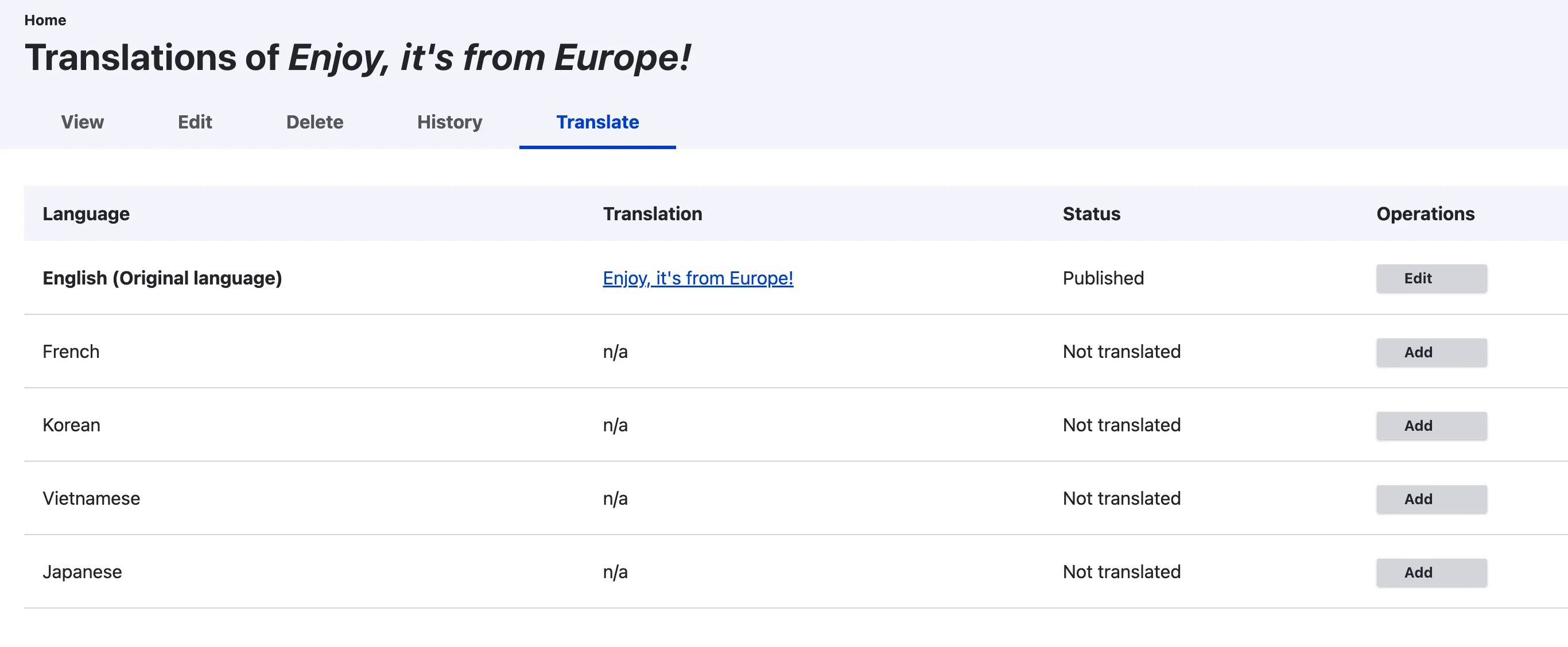
To add a translation, click on the language version “Add” button required for your website. This will redirect you to an interface similar to the edit form of the content type, where you can input and manage the translated content for that specific language.
The content type translation form