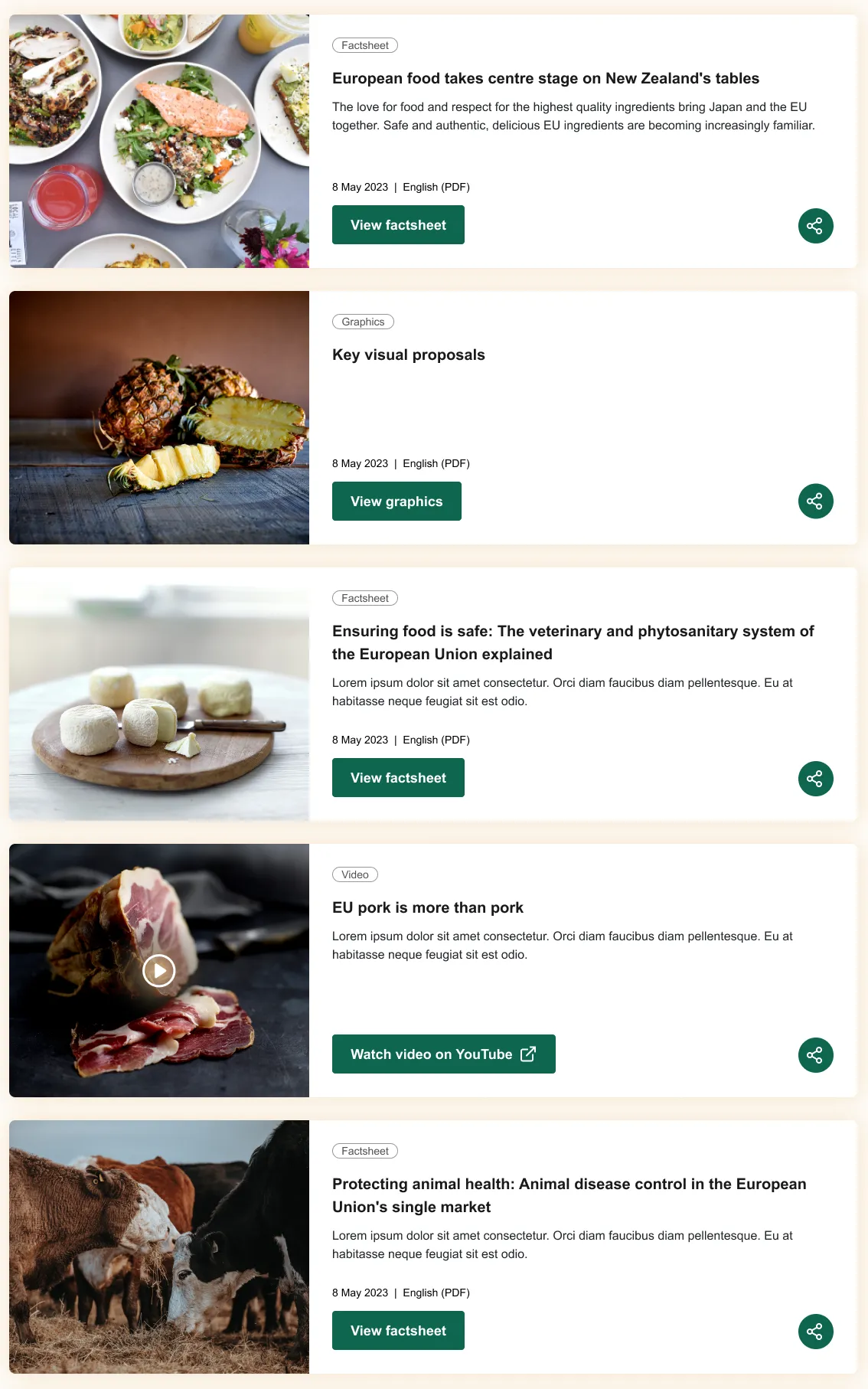
Resources content type
resources-content-type #EIFE version 0.1 | 37s Read time
The Resources content type enables editors to upload and manage a variety of resource formats that can be used throughout the site. This flexibility allows campaigns to offer different types of supporting materials in a user-friendly way.
Resources can be classified into the following categories:
- Media: Editors can embed external media from sources such as AV channel, YouTube, and Vimeo. This is particularly useful for video content and interactive media.
- Files: Upload files in formats such as PDF, DOCX, and XLSX, providing downloadable documents for users. This is ideal for reports, brochures, and other text-based resources.
- Images: Supported image formats include PNG, GIF, JPG, JPEG, and WEBP. These are commonly used for visuals such as logos, infographics, or event banners.
By offering multiple resource formats, editors can enhance the richness of the content and improve user engagement by making a wide range of materials easily accessible.
Creating a resource
First got to domain content => your country site domain => Add content => Resources
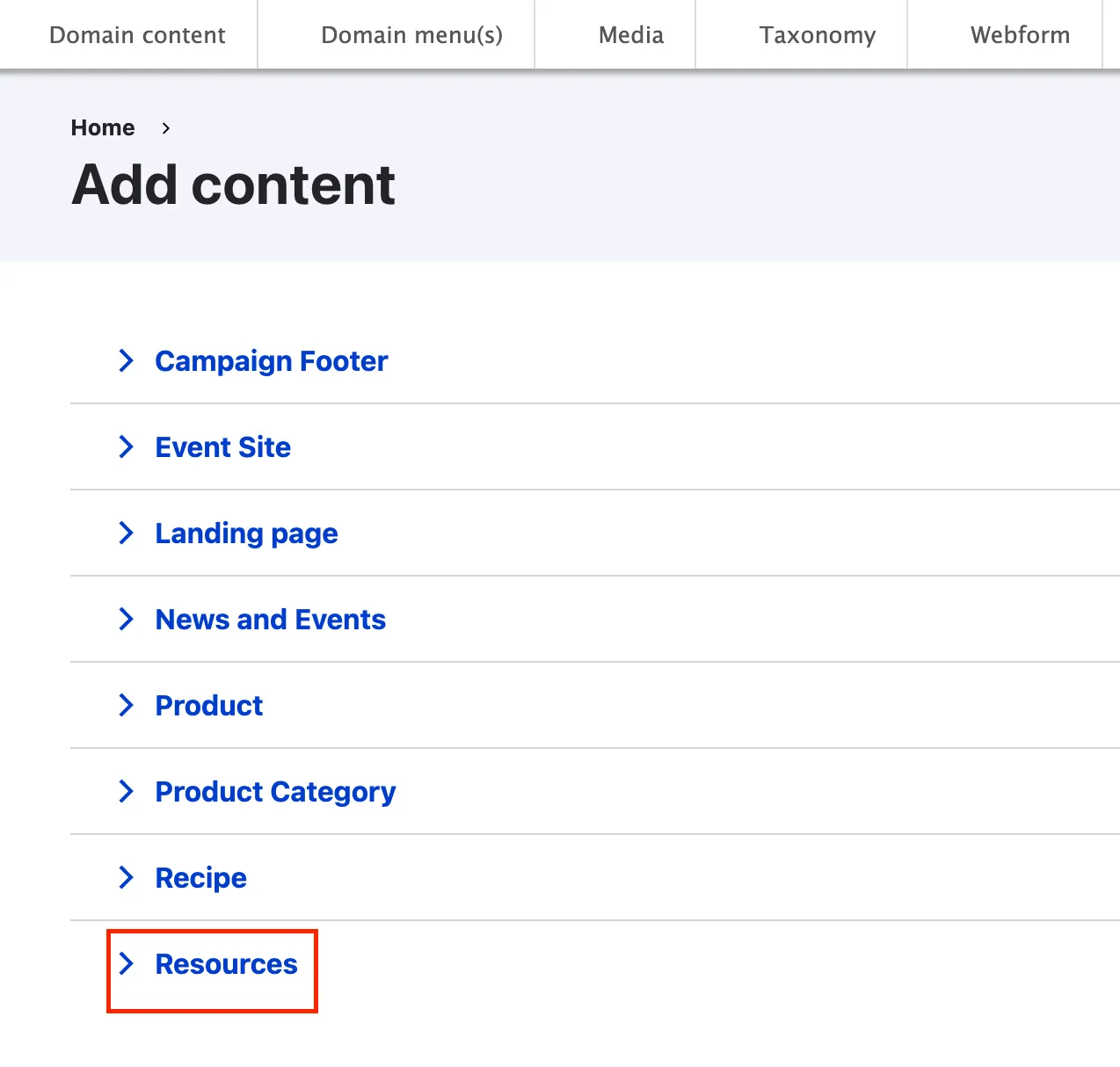
Resources backend from tabs
As most content types, the resources edit form is organised using tabs :
Header section tab
The header section includes the title of the resource being added. Always use a recognisable name that closely matches the resource’s actual name for easy identification.

Content section tab
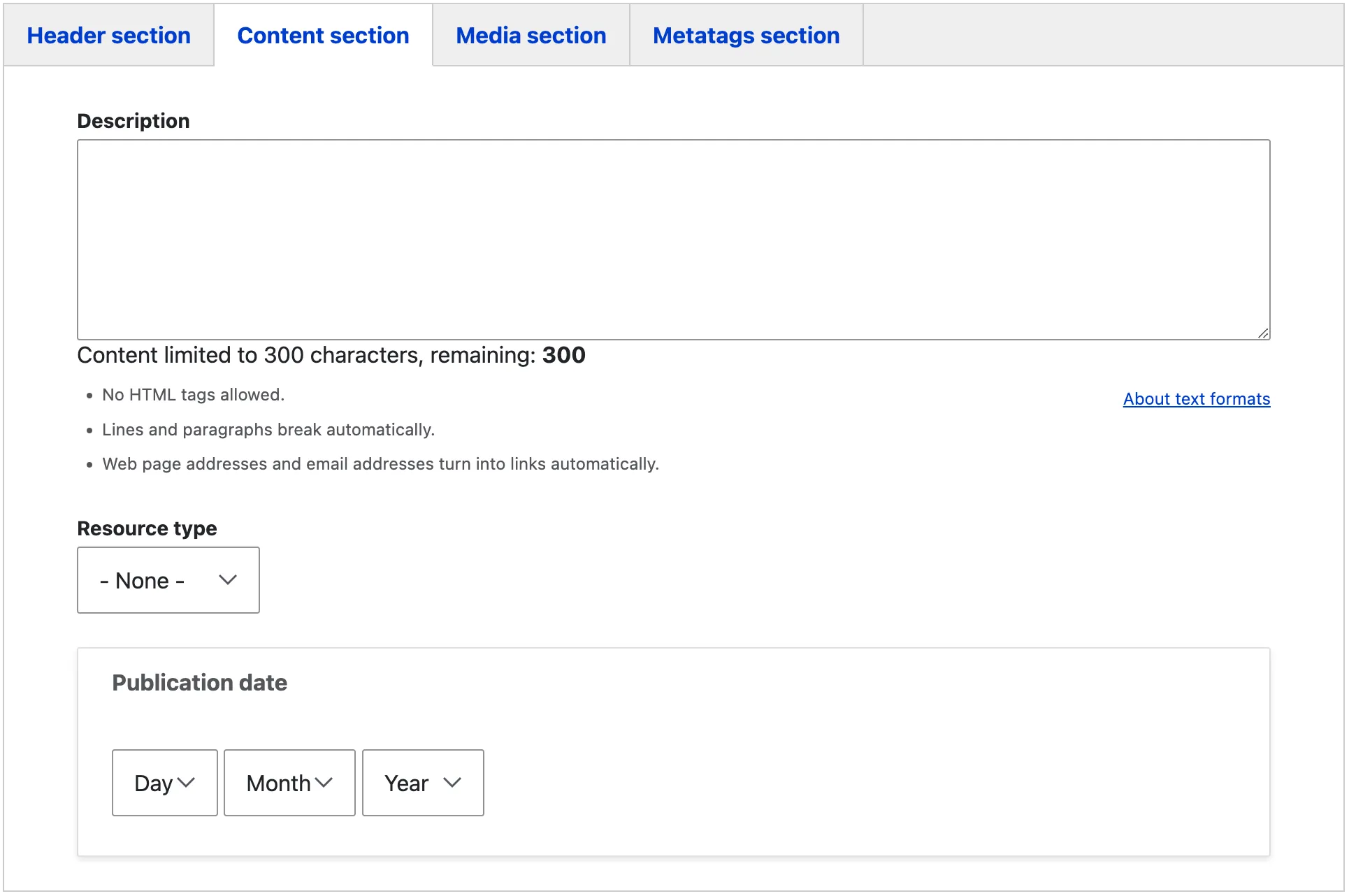
The content section tab contains fields for adding a descriptive text for the resource, which will be displayed on the listing page and other locations where the resource is referenced. The description is limited to 300 characters. Additionally, editors can tag the resource using the resource type, which helps classify it and is also used as a filter on the resource listing page.
A publication date can be added, though it is not mandatory. This date provides visitors with information about when the resource was created or published on the website.
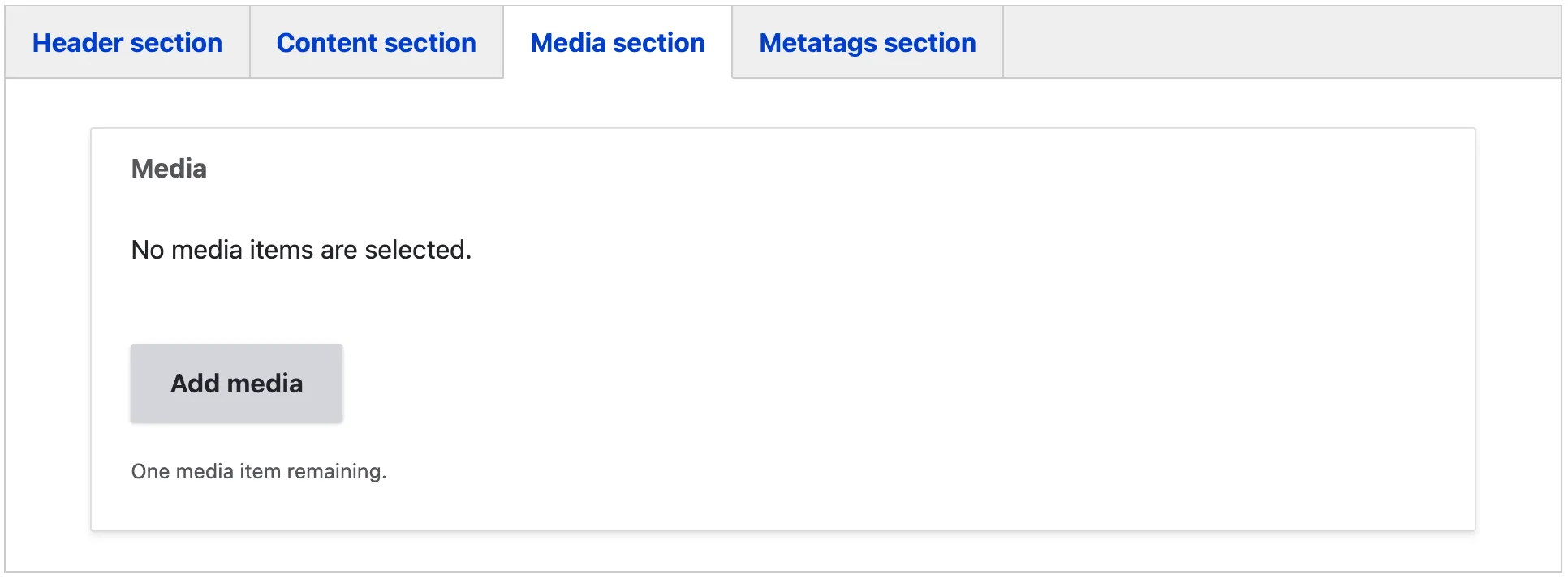
Media section tab
The media section allows editors to add the media itself. Clicking on the “Add Media” button will redirect to the media library interface, where the resource can be uploaded or selected.
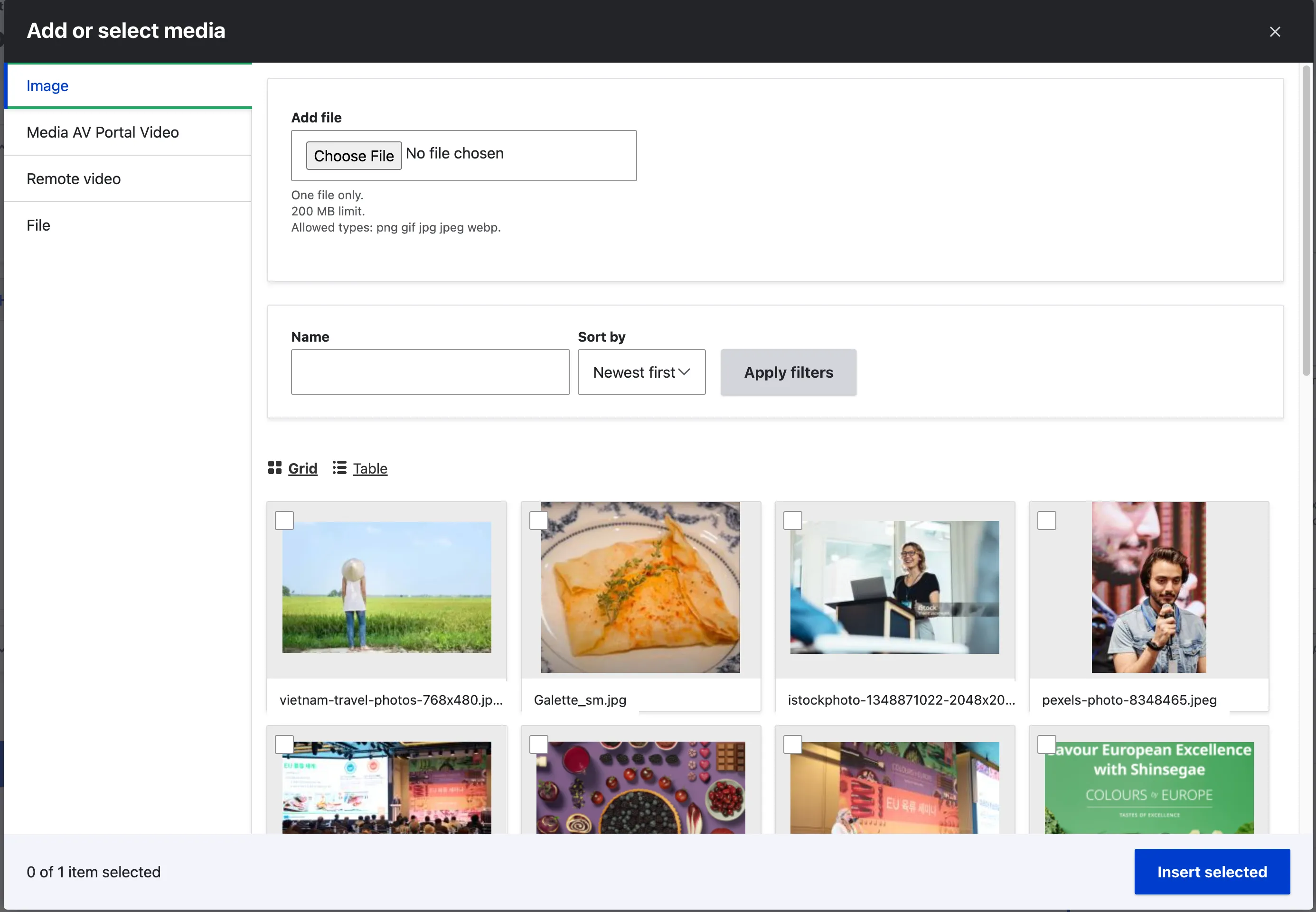
The default media library interface in the EIFE portal is organised into vertical tabs, categorising media by type (such as images, files, and videos). This intuitive layout allows editors to efficiently navigate between media types and manage resources.
To add a new resource, editors can click the “Add” button, which opens a file browser window, allowing them to browse their computer’s filesystem to upload new media. Editors can also select from existing media by simply clicking the desired item.
The interface features a powerful search filter, enabling editors to quickly find resources by name. This ensures easy access to previously uploaded content, making the content creation process more efficient.
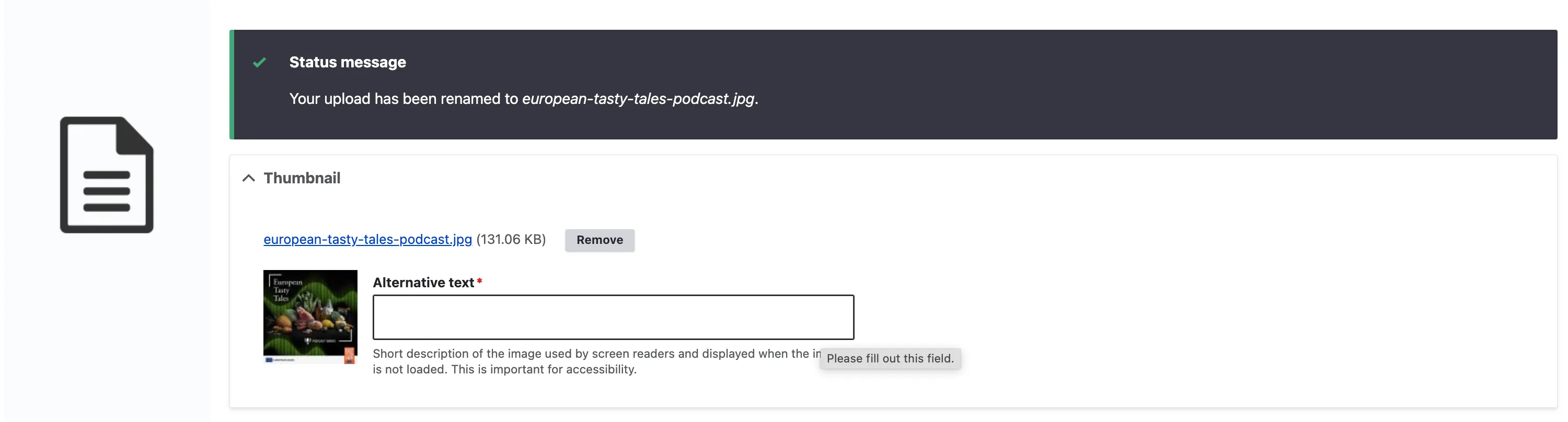
When uploading a resource of type ‘file’, you have the option to add a thumbnail as a cover image for the uploaded file. Please note that the displayed thumbnail should be in the following format: 443x321 px.
Metatags section tab
The Metadata option in EIFE enhances your content with additional information to improve search engine visibility. For more information – refer to Metadata Options
Figma Mockup